

Email
How to back up your emails in Outlook Office 365
Creating backups of your emails ensures that you can safeguard your valuable data and restore it when needed, providing you with peace of mind and the ability to access your emails even in the face of unexpected events. Whether you want to prepare for a system upgrade, switch to a new email client, safeguard against data loss, or simply keep a secure copy of your emails, this guide will equip you with the knowledge to perform email backups efficiently and confidently.
- Launch your Outlook Application.
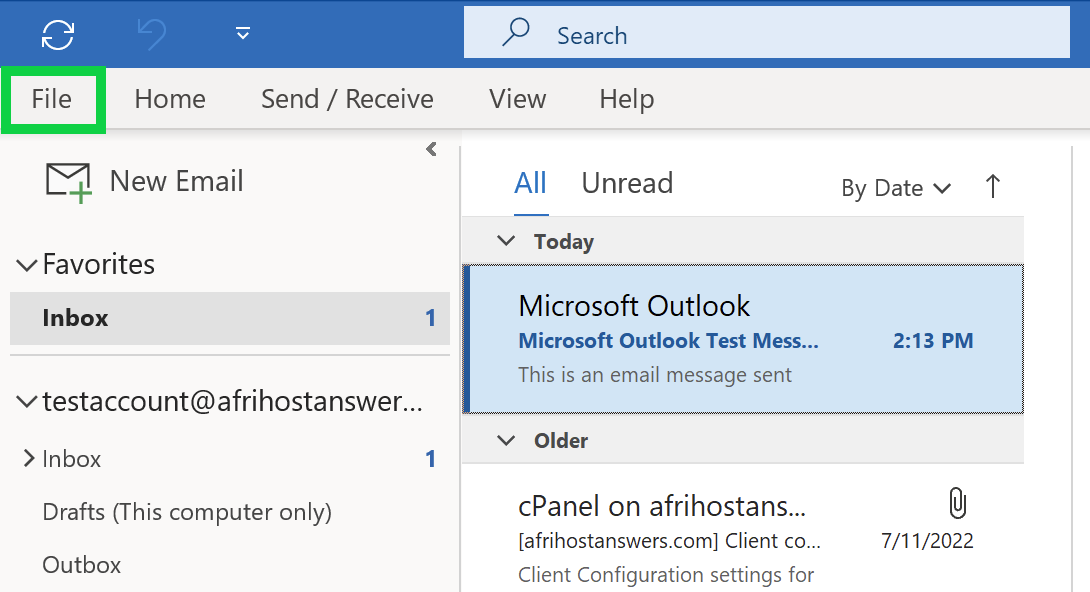
- Click on the 'File' tab situated in the top-left corner.
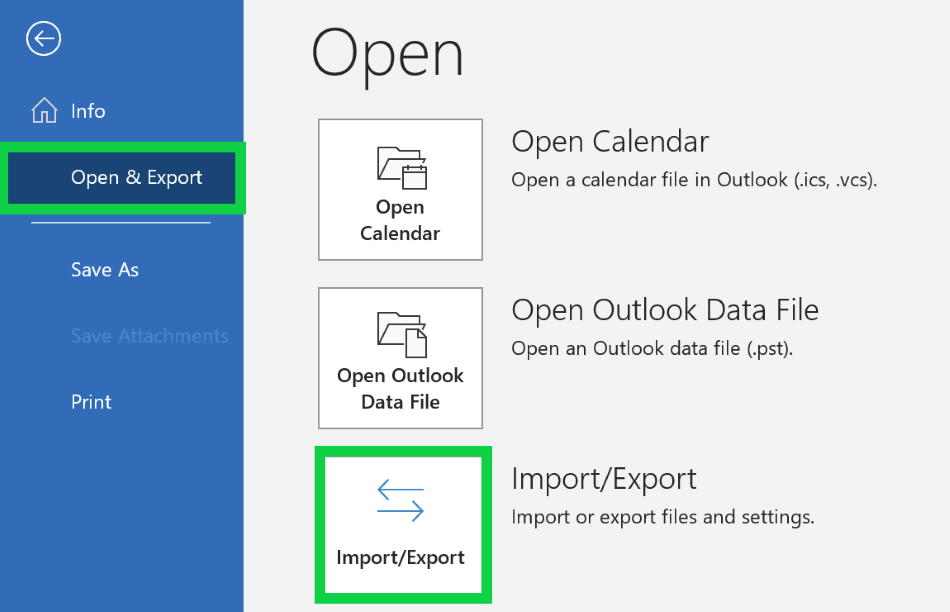
- Click on ‘Open & Export’.
- Select the ‘Import/Export’ option from the menu.
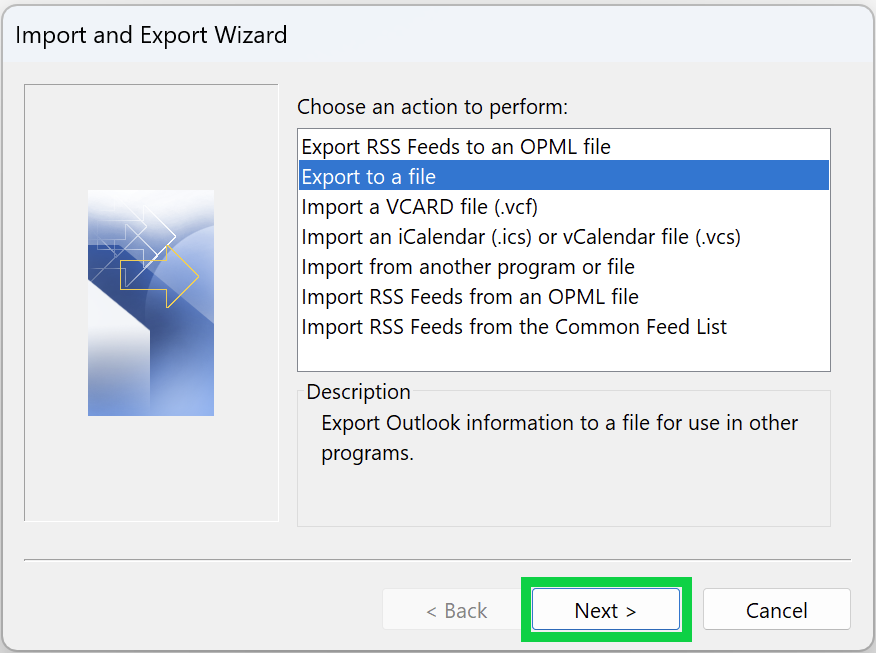
- Choose ‘Export to a file’ from the options.
- Click ‘Next’.
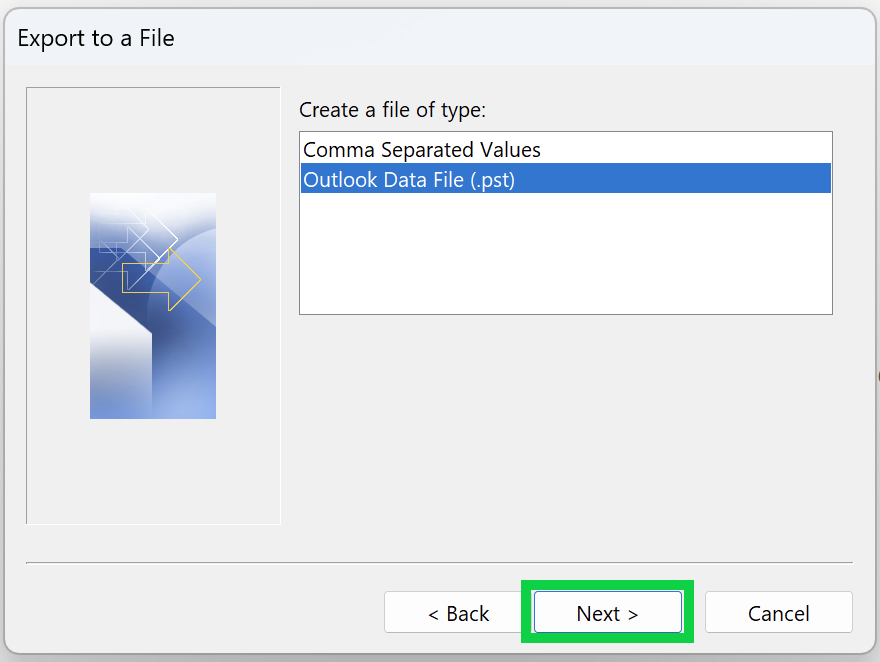
- Select ‘Outlook Data File (.pst)’ and click ‘Next’.
- Select the mailbox you want to back up (if you have more than one).
- Check the ‘Include subfolders’ option if you want to back up everything.
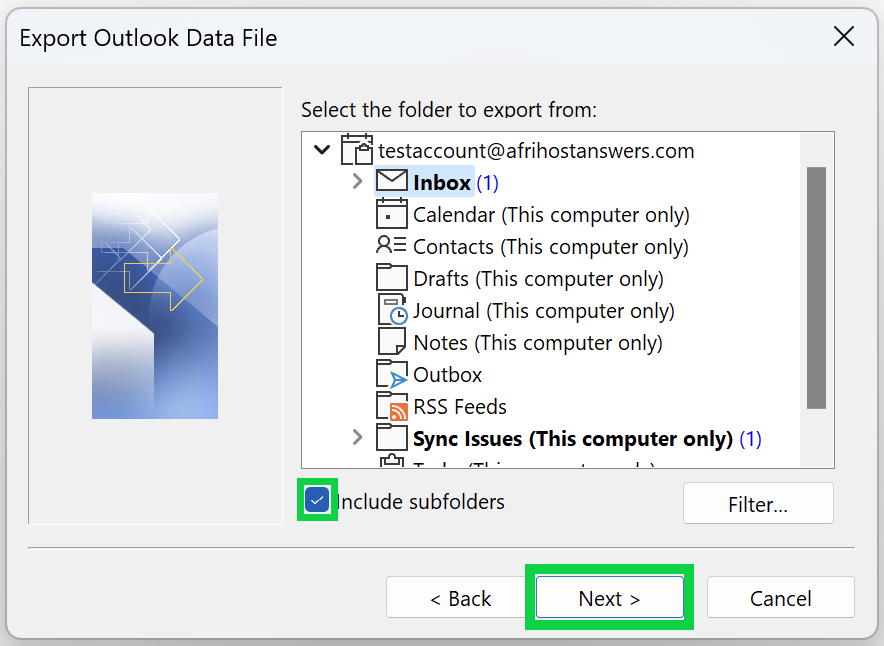
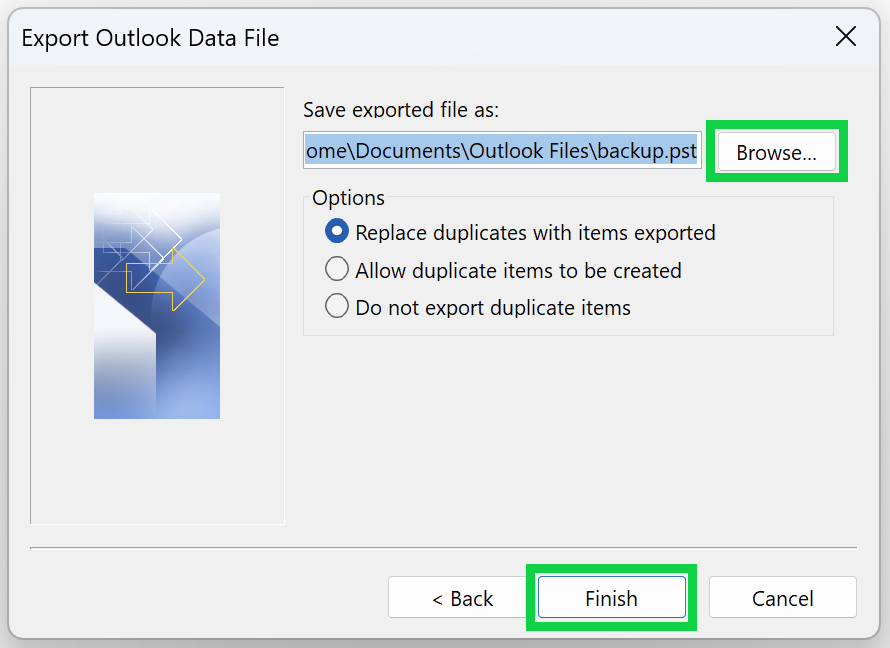
- Browse to select a location to save the .pst file.
- Click ‘Finish’ to begin the export process.
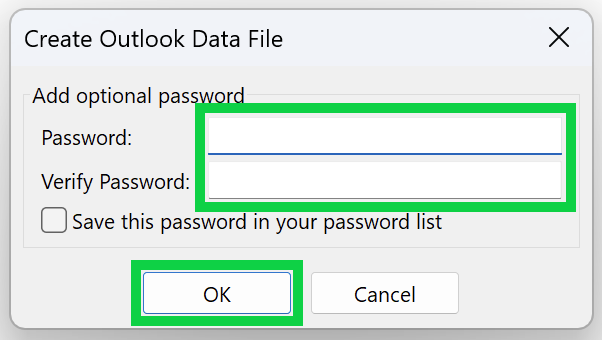
- You may create a password to protect your Outlook data file or leave the password fields blank and click ‘OK’ to proceed without a password.
Congratulations! You have successfully created a backup of your emails.