

How to manage the ZTE G5TS router
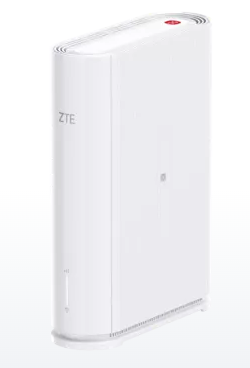
The ZTE G5TS is a high-performance router designed for fast and reliable connectivity. It comes with a built-in 5G chipset, four Gigabit Ethernet ports for multiple wired connections, dual-band Wi-Fi 6 for improved speed and coverage and support for up to 64 wireless devices.
How to add APN details
An Access Point Name (APN) enables your device to connect to the internet through its network. With the correct APN settings, your device links to your carrier’s gateway.
- Connect to your router directly via LAN cable or Wi-Fi.
- Open your internet browser.
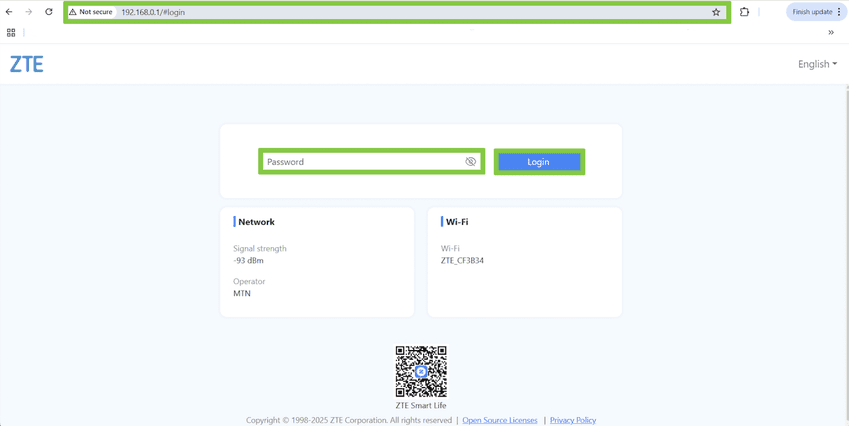
- Enter '192.168.0.1' into the search bar and hit enter to search.
- Log into the router.
- Click 'Login'.
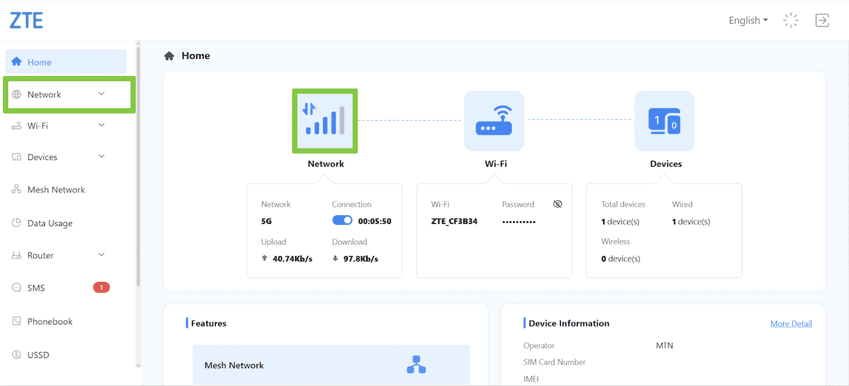
- On the router home interface, select the ‘Network’ icon.
- Or if you choose the ‘Network’ option from the left-hand menu, make sure to select ‘Mobile Network’ from the drop-down list for LTE.
- The mode is set to ‘Auto’ as the ZTE is set to auto-configure. However, if you wish to change the APN, change the mode to ‘Manual’
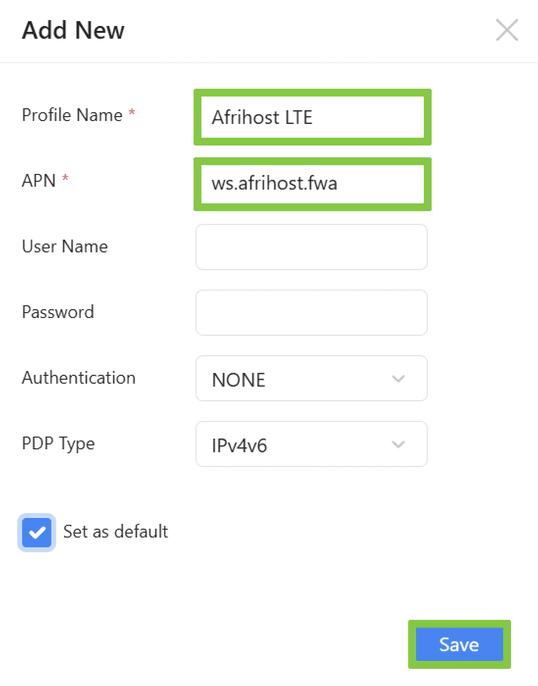
- Select the plus icon to create a new ‘APN’.

The Dial-up Settings will populate automatically as follows:
- Profile Name: Afrihost Fixed LTE - MTN
- APN: ws.afrihost.fwa
- Username: (leave blank)
- Password: (leave blank)
- Authentication type: NONE
- PDP Type: IPv4v6
- Click on the ‘Save’ button.
If you’re using Afrihost with another LTE network, make sure your device is set up with the correct APN settings:
Telkom LTE: afrihost
Pure LTE (MTN): ws.afrihost.fwa
Vodacom LTE: afrihost
You have successfully added a new APN.
How to change your WiFi details
- Connect to your router directly via LAN cable or Wi-Fi.
- Open your internet browser.
- Enter '192.168.0.1' into the search bar and hit enter to search.
- Log into the router.
- Click 'Login'.
You can reset your router to its factory settings. Look for the sticker on the bottom of your ZTE LTE router for the default admin password.
- Locate the reset button on your router.
- With the router powered on, use a pin to press the reset button down for 15 -20 seconds.
- Wait for the router to fully reset and reboot.
Your router's default settings will be restored. Please refer to the 'First time logging in to the device' section above to reconfigure your router.
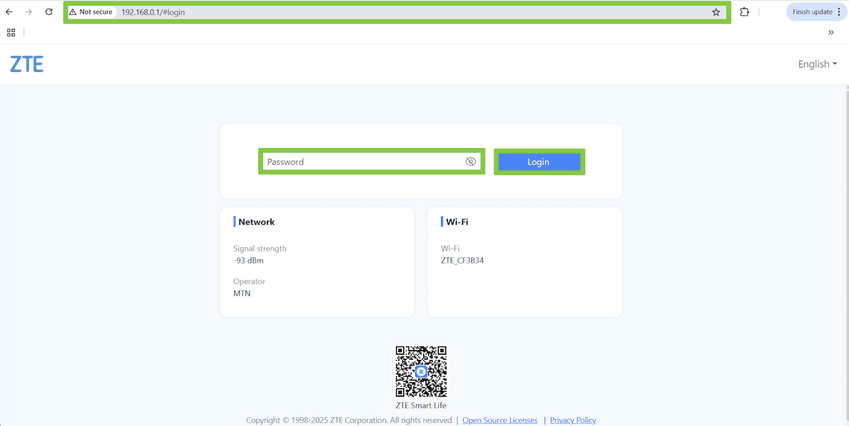
- On the router home interface, select the ‘Wi-Fi’ icon.
- Or if you choose the ‘Wi-Fi' option from the left-hand menu, make sure to select ‘Main SSID’ from the drop-down list.

- Under the ‘Basic Settings’ change the ‘Network Name (SSID)’ to a name of your choice.
- Tick the ‘Broadcast SSID’ box so that devices can see your network name.
- Leave the ‘Security Mode’ set to WPA2-PSK.
- Change the ‘Password’ to a Wi-Fi password of your choice.
- Click ‘Apply’ to save.
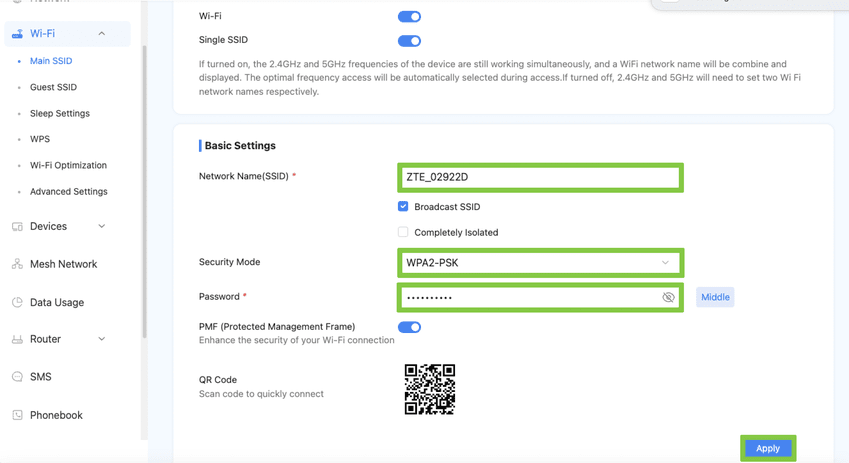
Make sure the ‘Single SSID’ option is switched off to access these settings.
Try adjusting the ‘Security Mode’ from WPA2-PSK to WPA2-PSK/WPA3-SAE.
You have successfully changed your WiFi settings.
How to block users via MAC address filtering
Every device that connects to your network has a unique MAC address (Media Access Control) including smartphones, computers, printers, and gaming consoles. A MAC address identifies a device on the local network. With MAC address filtering, you can view connected devices, block unwanted devices and allow previously blocked devices back onto your WiFi network.
- Connect to your router directly via LAN cable or Wi-Fi.
- Open your internet browser.
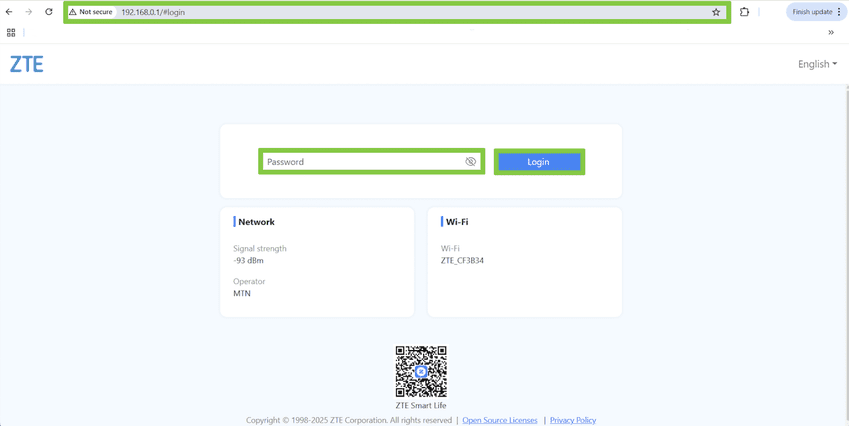
- Enter '192.168.0.1' into the search bar and hit enter to search.
- Log into the router.
- Click 'Login'.
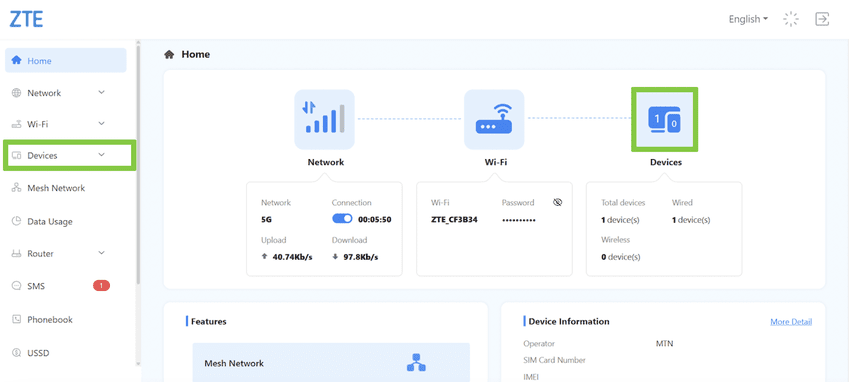
- On the router’s home interface, select the ‘Devices’ icon.
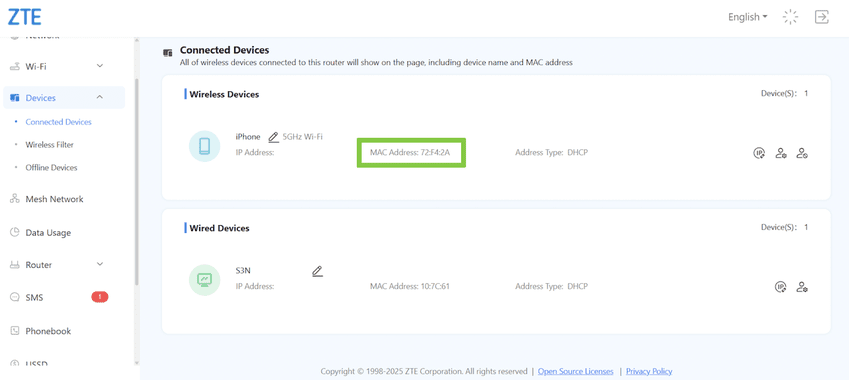
- Or if you select ‘Devices’ option from the left-hand menu, be sure to select ‘Connected Devices’ from the drop-down list.
- Select the device you want to block from the list of connected devices and copy its MAC address.
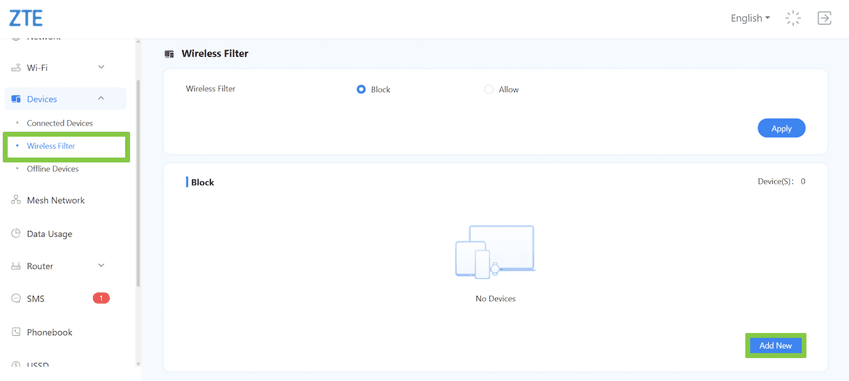
- Select the ‘Wireless Filter’ option to block the device.
- Select ‘Add New’ to block the device.
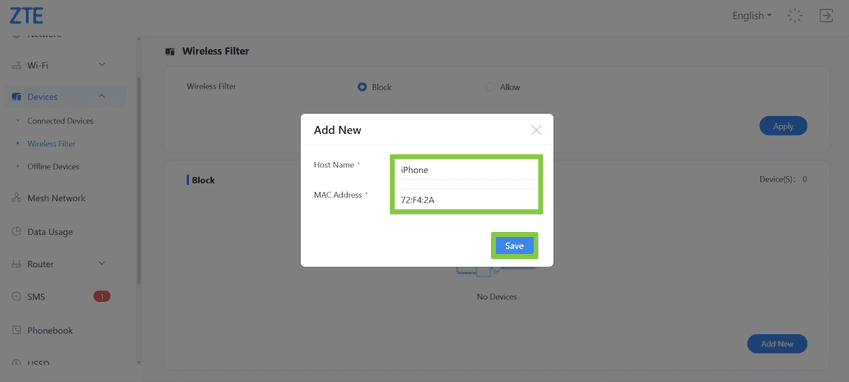
- Enter the device details, then click ‘Save’ to block the device.
- Once saved the device will appear in the blocked devices list.
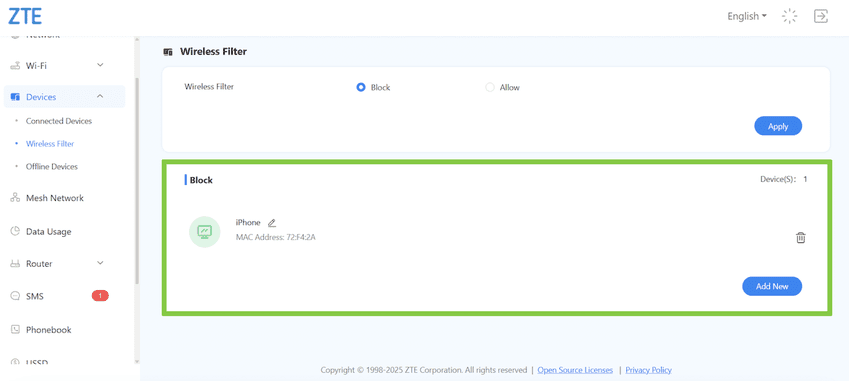
The device has been successfully blocked through mac address filtering.