

How to setup a Huawei B311 and B618 LTE device
Are you experiencing network connectivity issues with your Huawei B311 or B618 device? This may be due to the network move or a general network issue. To resolve this you need to manually check the APN settings or network settings. We will guide you through the simple process of manually configuring the Huawei B311 or B618 device.
Before proceeding, ensure:
- Your device is properly configured and activated.
- You have a valid SIM card inserted.
- You are in an area with network coverage.
Your router comes preconfigured with the APN and Wi-Fi settings, however in the event that you need to reset and reconfigure the router please follow the below steps:
How to manually setup the Huawei B311
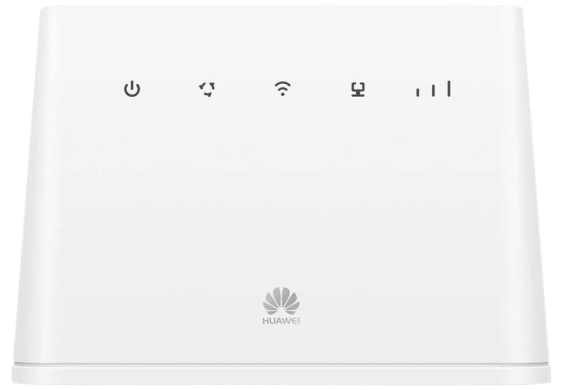
- Connect to your LTE router via LAN cable or Wi-Fi.
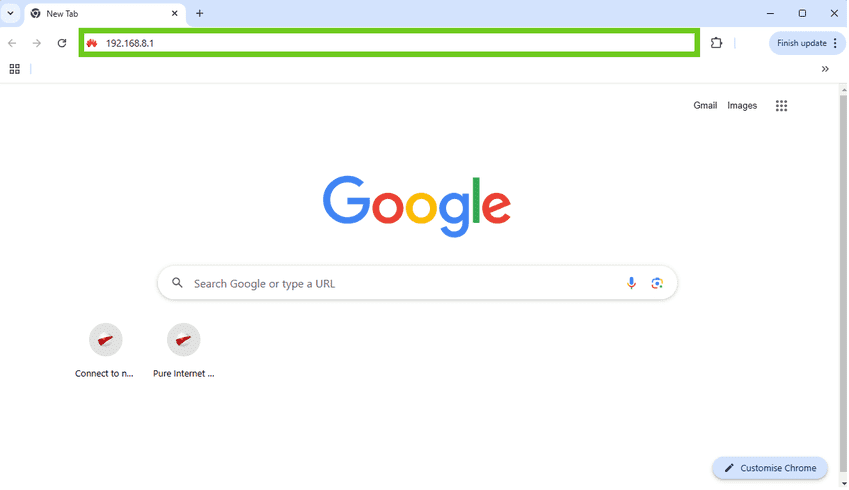
- Open your internet browser.
- Enter 192.168.8.1 into the search bar and hit enter to search.
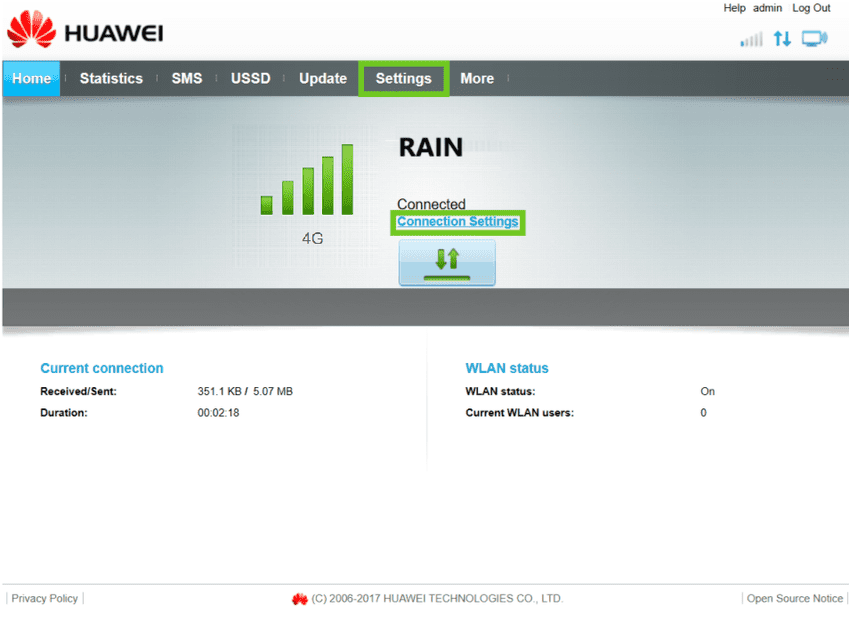
- Select ‘Settings’ or ‘Connection Settings’.
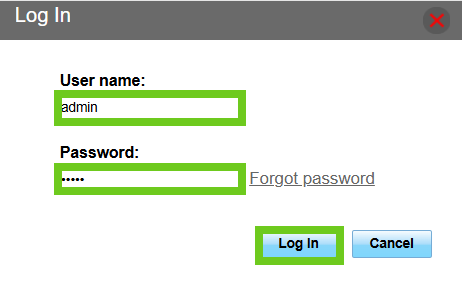
- Enter the default username and password to log into the router.
- Click on ‘Login’.
- On the left-hand side, select ‘Dial-Up’.
- Then select ‘Profile Management’ below.
- Select ‘New Profile’ create a profile.
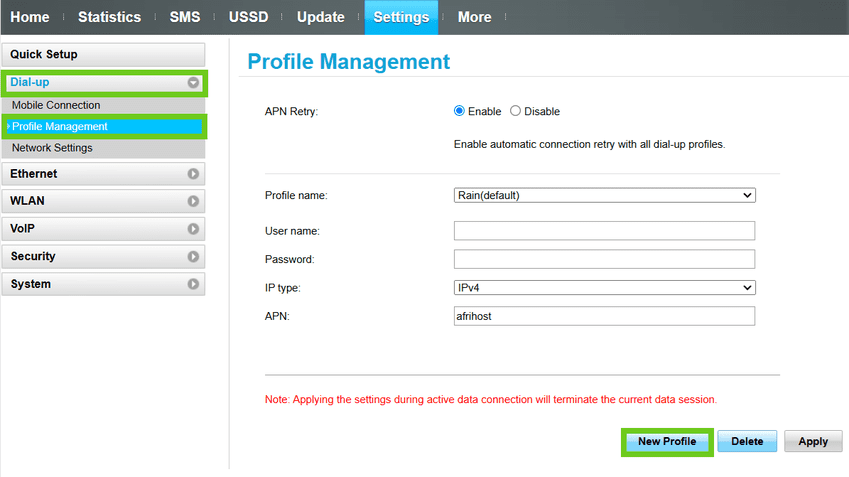
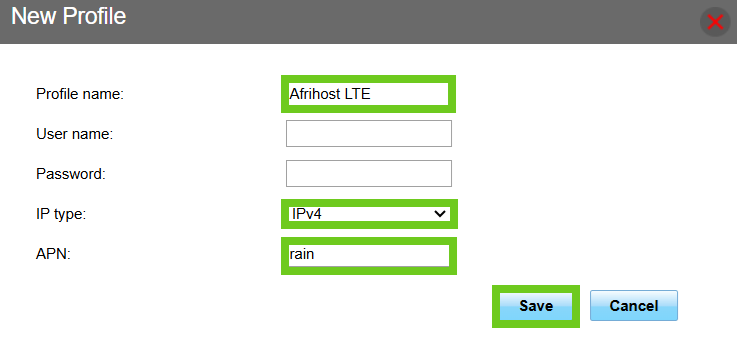
- Enter the following details:
Profile Name: Afrihost LTE
Username and Password: Leave these blank
IP Type: IPv4
APN [Rain LTE]: rain (all lower case, no spaces)
- Click ‘Save’ to update the details.
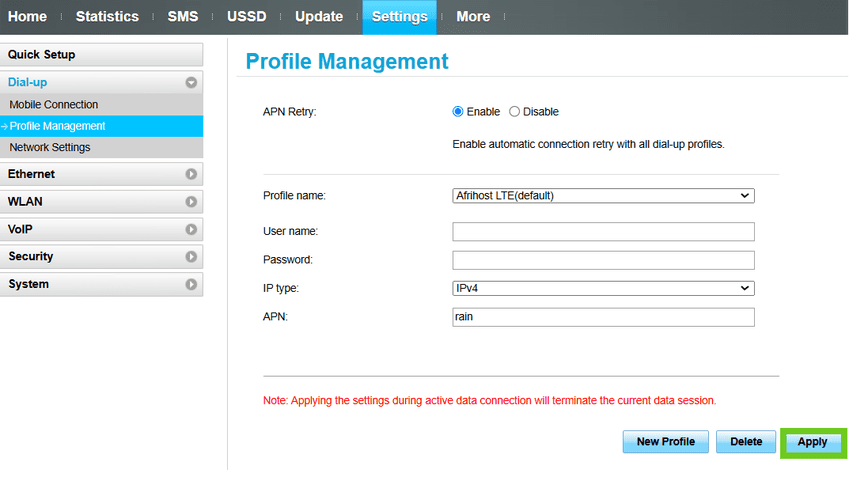
- Select the new profile you have created then click ‘Apply’.
- Select ‘Network Settings’ to update the ‘Preferred mode/ Network mode’.

Change the ‘Preferred mode’ from ‘Auto’ to ‘4G only’ then click ‘Apply’.
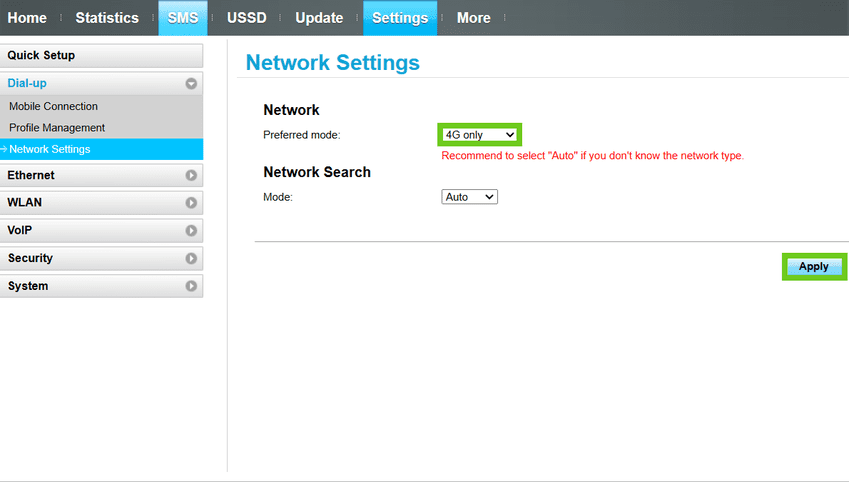
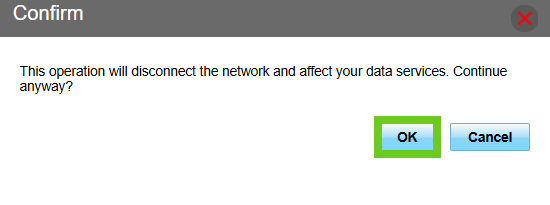
- A confirm pop will appear click ‘OK’ to continue update.

You have successfully configured the APN and Network Mode.
How to manually setup the Huawei B618 device
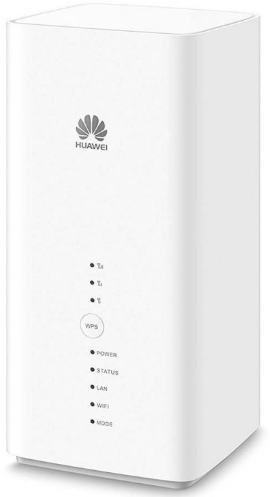
- Connect to your LTE router via LAN cable or Wi-Fi.
- Open your internet browser.
- Enter 192.168.8.1 into the search bar and hit enter to search.
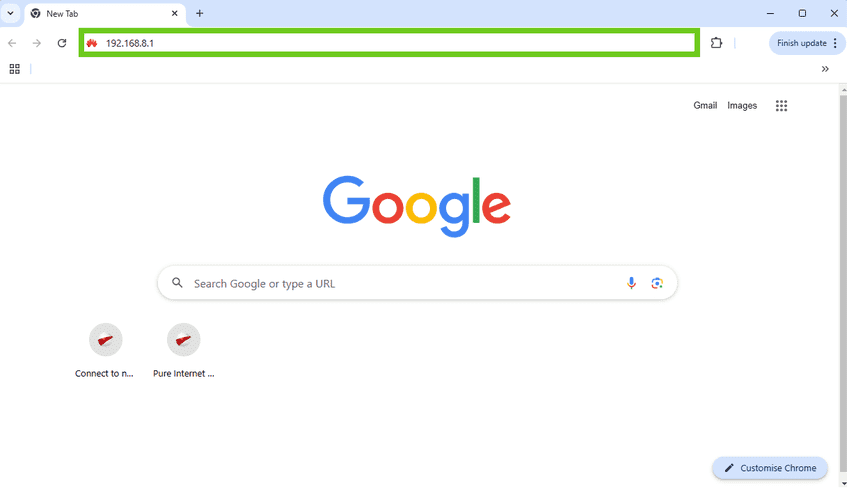
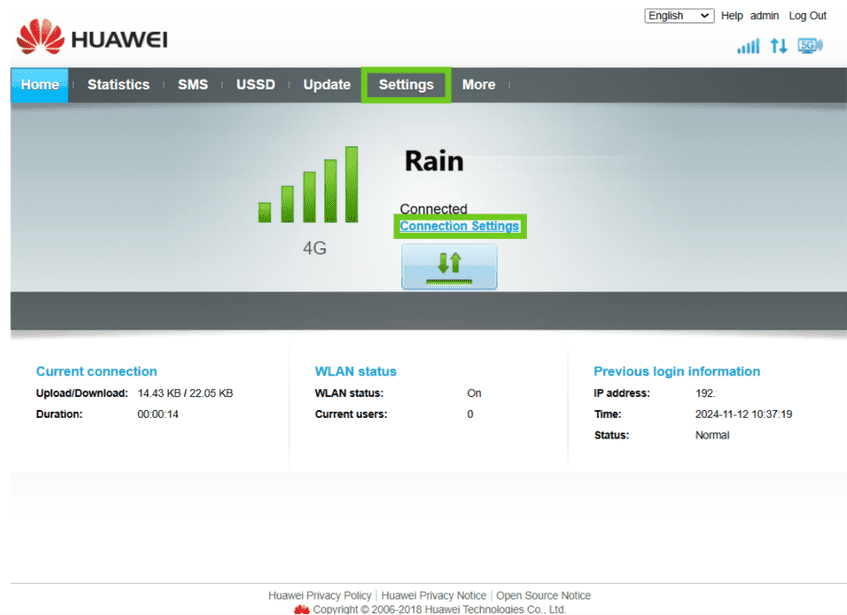
- Select ‘Settings’ or ‘Connection Settings’.
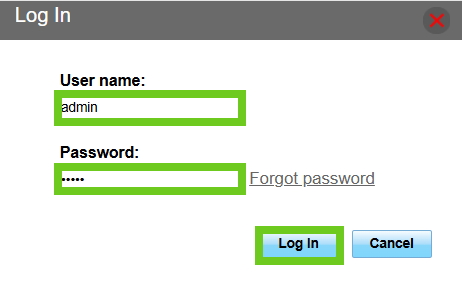
- Enter the default username and password to log into the router.
- Select ‘Dial-Up’ from the menu on the left-hand side.
- Below that, select ‘Profile Management’.
- Select ‘New Profile’ create a profile.
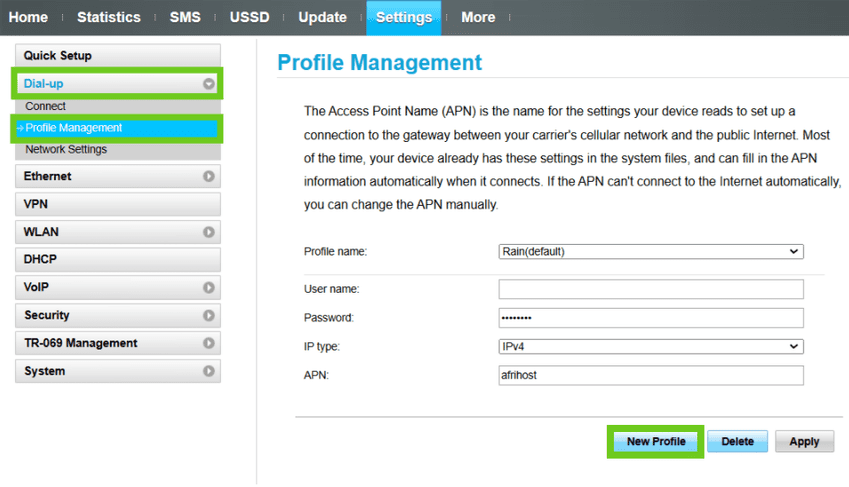
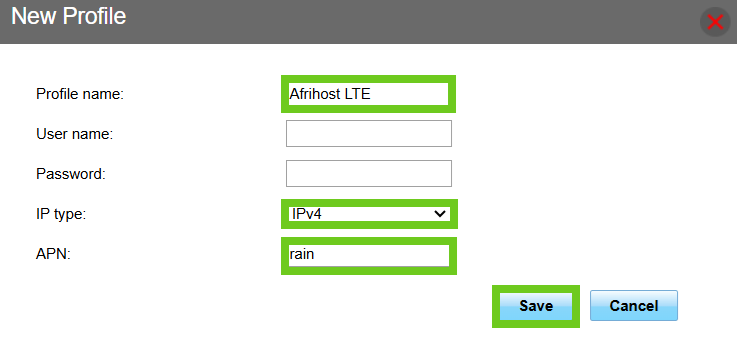
- Enter the following details:
Profile Name: Afrihost LTE
Username and Password: Leave these blank
IP Type: IPv4
APN [Rain LTE]: rain (all lower case, no spaces)
- Click ‘Save’ to update the details.
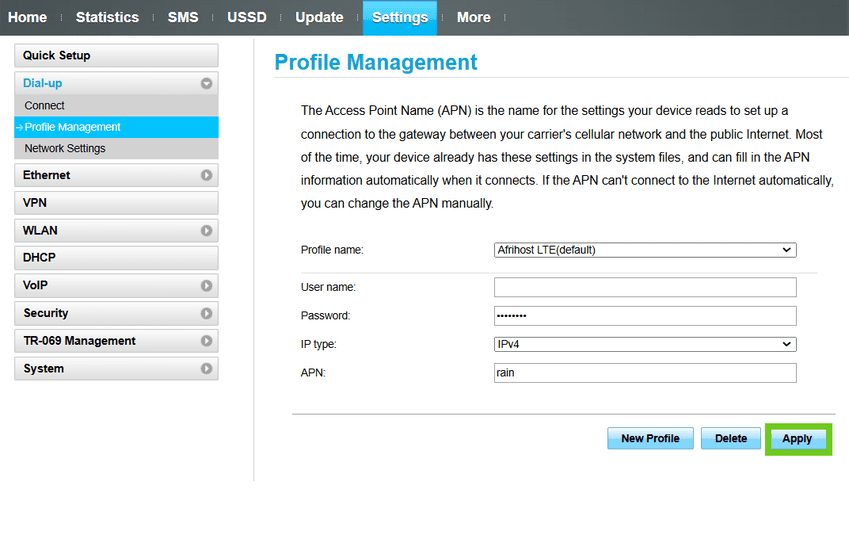
- Under Profile Name, select the new profile you have created from the drop down and then click ‘Apply’.
- Select ‘Network Settings’ to update the ‘Preferred mode/ Network mode’.

- Change the ‘Preferred mode’ from ‘Auto’ to ‘4G only’ then click ‘Apply’.
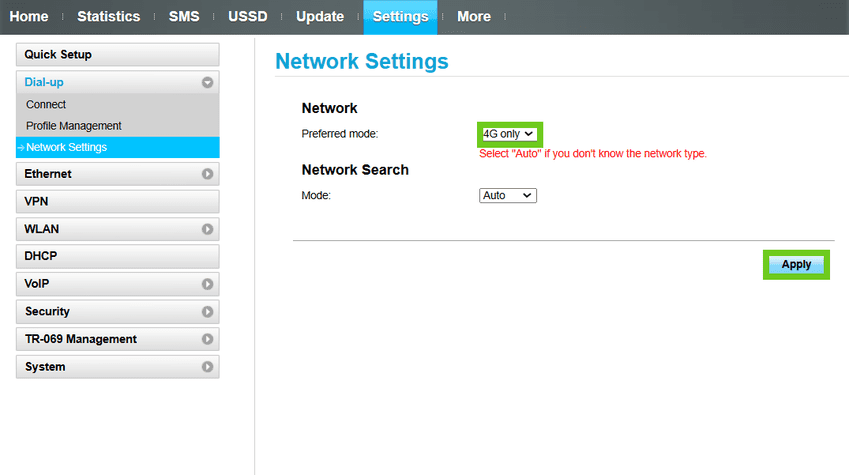
A confirm pop will appear click ‘OK’ to continue update.
You have successfully configured the APN and Network Mode.