

VoIP
How to setup your VoIP voicemail in ClientZone
Pure VoIP voicemail messages are received via email as audio files. If you are unavailable to answer the call, your contact will be able to leave a voicemail message on your VoIP number. The voicemail will be converted into an audio file, and then sent to the listed email address set on your ClientZone.
Configure your VoIP voicemail
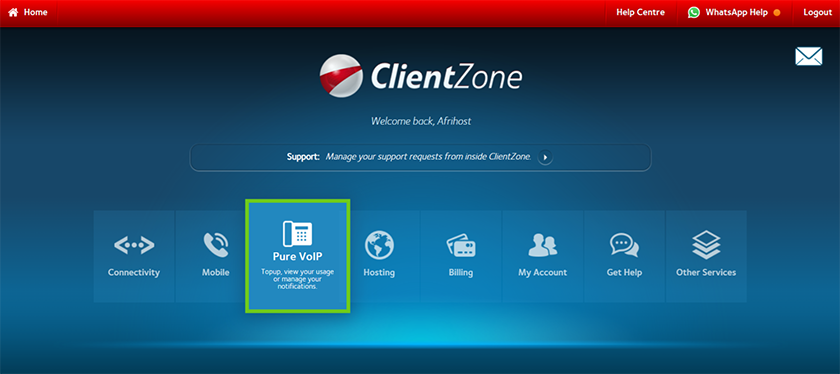
- Log into ClientZone.
- Select the ‘Pure VoIP’ tab.
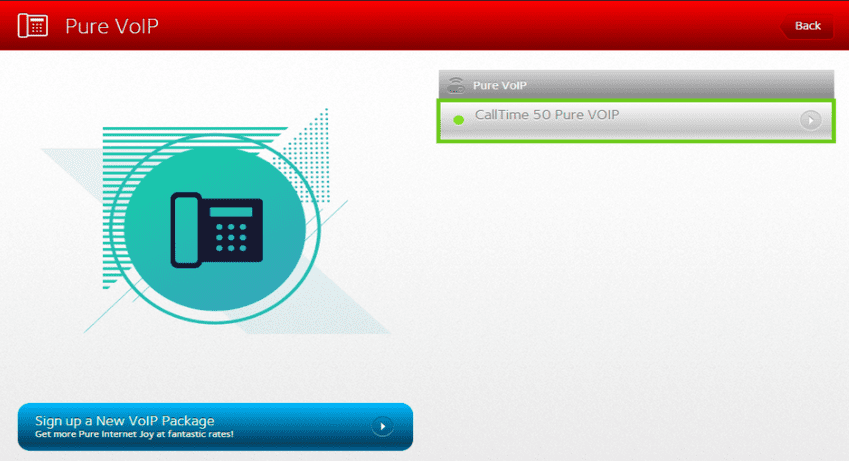
- Select your Pure VoIP package on the right-hand side.
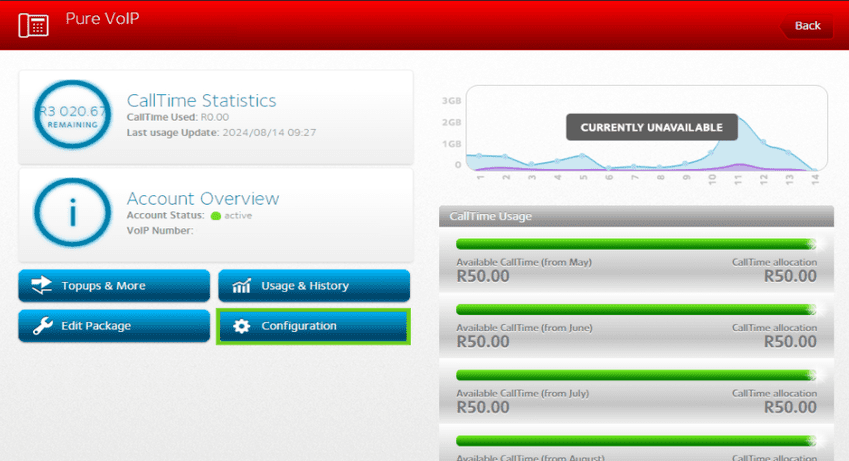
- Click on the ‘Configuration’ button.
Change the email where you receive voicemails.
If you would like to know **How to change the email where you receive your VoIP voicemails, read our Help Centre article for assistance.
- Click on ‘Voicemail Details’ to view or update the VOIP voicemail email address.
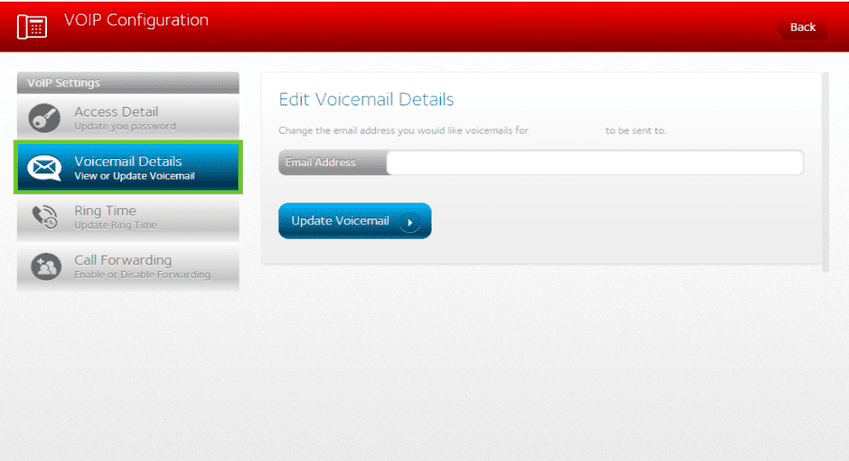
- Enter the email address where voicemails should be sent to if you are unavailable or missed a VoIP call.
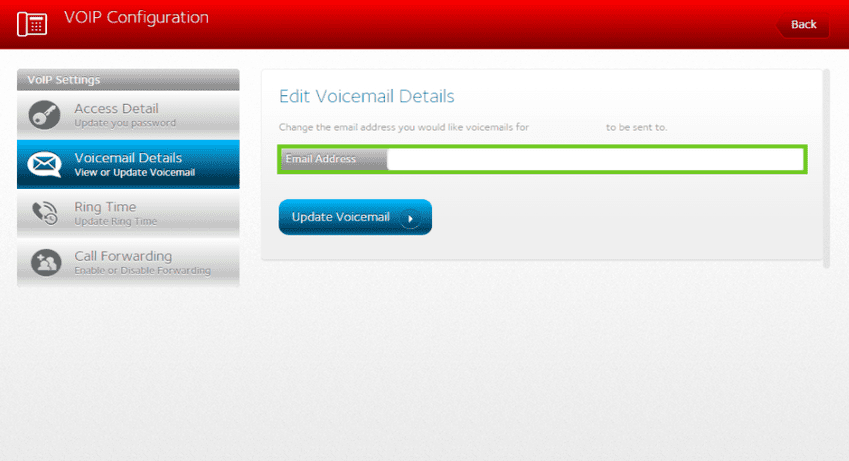
- Select ‘Update Voicemail’ to update the email address where voicemails will be sent.

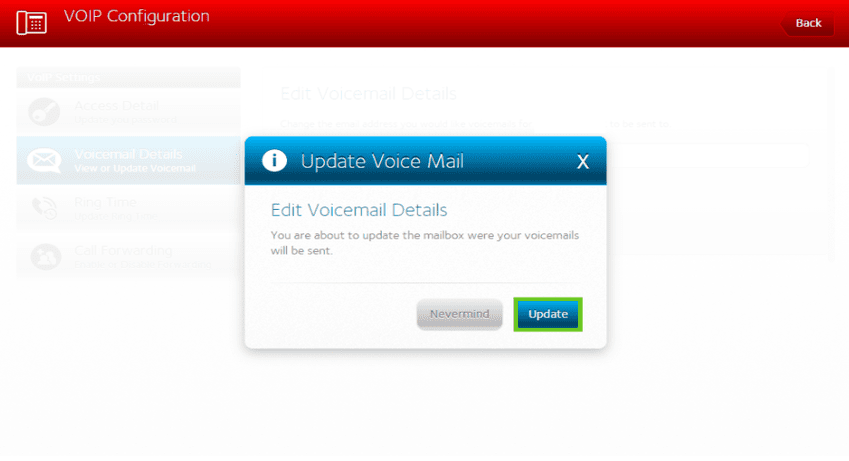
- Select ‘Update’ to confirm the email address update.
- Once the update is done, a success message will appear. Select ‘Okay’ to accept the update.
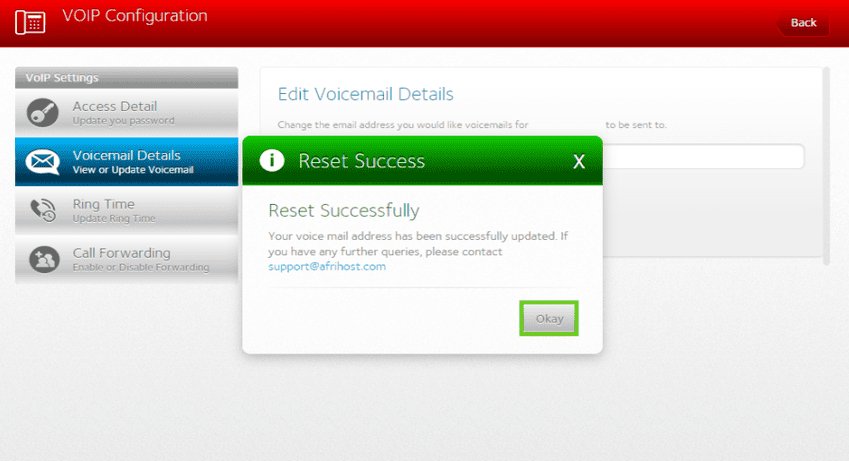
You have successfully updated the email address for your Pure VoIP voicemail.
VoIP voicemail to email.
If you would like to know how to get your **Pure VoIP voicemails to email, please read our Help Centre article for assistance