

Fibre
How to change the TP-Link EX511 fibre router SSID & WiFi password
Your WiFi router comes with a default SSID name (network name) and password. Modifying your default SSID allows you to choose something more personal. You can change the SSID and WiFi password of the router at any time.
Change the SSID and password on your TP -Link router:
- Connect to your Fibre router via LAN cable or WiFi .
- Open your internet browser.
- Navigate to the device's IP address, 192.168.0.1, or tplinkmodem.net, and hit enter to search.
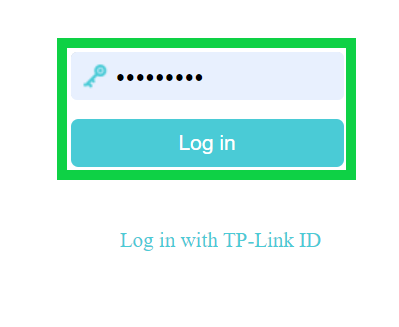
- Enter your router password and click the ‘Log in’ button.
I don't remember the router admin password.
If you forgot your router admin password, you may perform a router reset to restore factory settings. (The default wifi or admin password on a TP-Link Fibre router, check the sticker on the bottom of the device).
- Locate the reset button on your router.
- With the router powered on, use a pin to press the reset button down for 15 -20 seconds.
- Wait for the router to fully reset and reboot.
Your router's default settings will be restored. Please refer to the 'First time logging in to the device' section above to reconfigure your router.
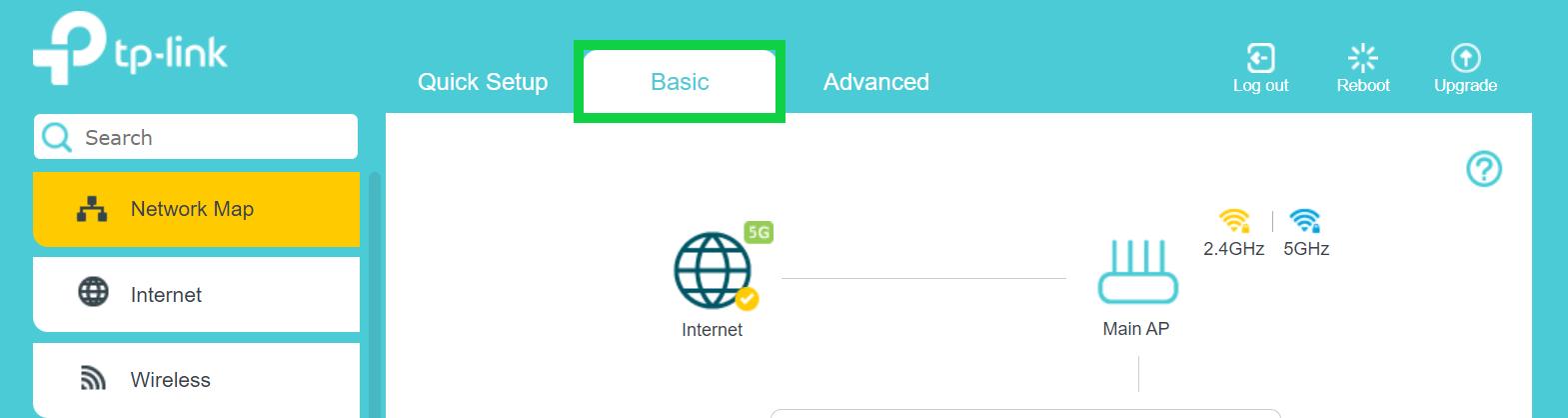
- On the home page, select ‘Basic’ from the menu at the top.
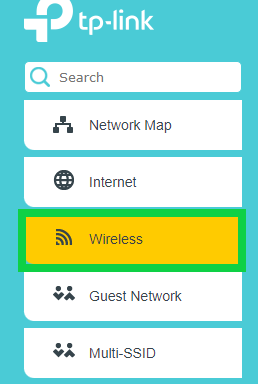
- Select ‘Wireless’ from the left-hand side menu.
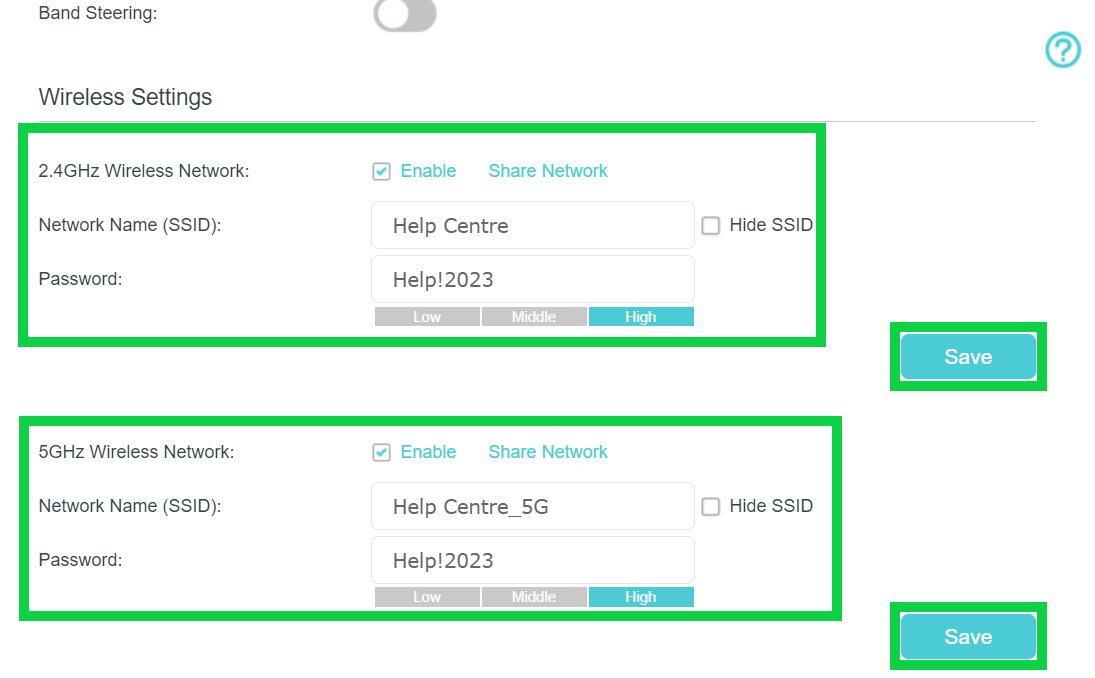
- Enter a new Network Name (SSID) and Password for the 2.4GHz network.
- Click ‘Save’.
- Enter a new Network Name (SSID) and Password for the 5GHz network.
- Click the ‘Save’ button.
You have successfully updated your SSID and WiFi password.