

Wireless
How to configure the APN on your TP- Link NX510v 5G router
An Access Point Name (APN) allows the device’s network to connect to the internet. With the APN settings in place, your device establishes a connection to a carrier’s gateway. Our APN determines that you are using Afrihost Data, and not data directly from MTN.
Follow the steps below to set up the APN:
- Connect to your LTE router via LAN cable or WiFi.
- Open your internet browser (Safari, Google Chrome, Firefox, etc).
- Navigate to the device's IP address, 192.168.1.1, and hit enter to search.
- Log into the router.
Log into the router.
If you don’t remember the password of your router, please read our How to set up your Tp-Link NX510v 5G router article, for further assistance.
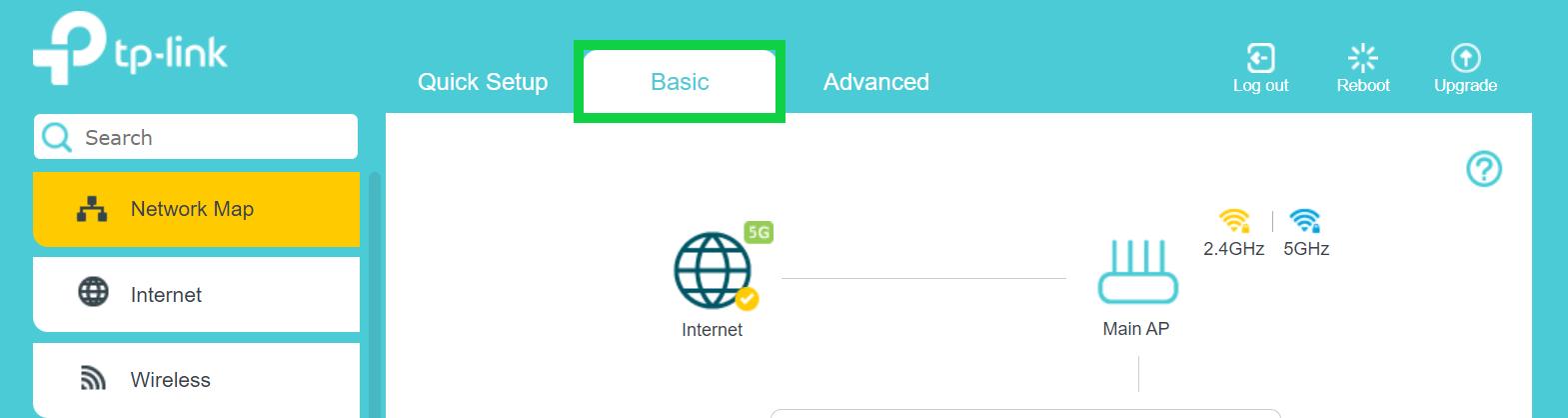
- On the home page, select ‘Basic’ from the menu at the top.
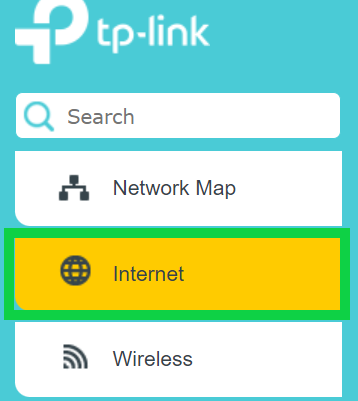
- Select ‘Internet’ on the left-hand side menu.
- The Dial-up Settings will populate automatically as follows:
- Profile Name: Afrihost Fixed LTE
- PDP Type: IPv4
- APN: ws.afrihost.fwa
- Username: LEAVE BLANK
- Password: LEAVE BLANK
- Authentication type: NONE
- Click on the ‘Save’ button.

Congratulations, you have successfully configured the APN on your TP - Link device.