

How to set up your TP-Link NX510v 5G router
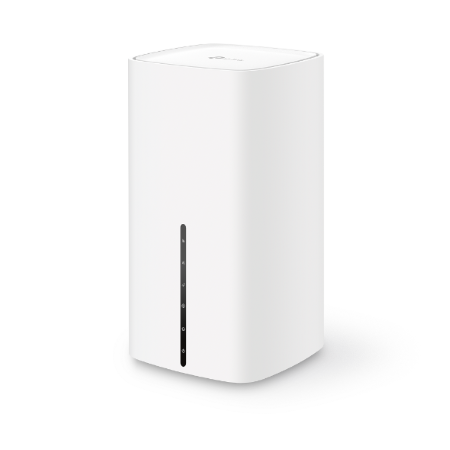
The TP-Link NX510V is a cutting-edge router that combines blazing-fast 5G connectivity with the latest WiFi 6 technology, offering you an unparalleled internet experience with enhanced speed, reliability, and efficiency. With support for WiFi 6, it delivers ultra-fast wireless speeds and improved performance, even in busy environments with multiple devices, ensuring smoother and more consistent connectivity. The integration of 5G technology provides lightning-fast internet access, reducing video buffering and ensuring uninterrupted connectivity for activities like HD streaming, online gaming, and video conferencing. In this article, we walk you through the initial configuration of your Tp-Link NX510v router.
Follow these steps to configure your TP-Link device:
Use this guide to set up your device after resetting your router back to factory settings.
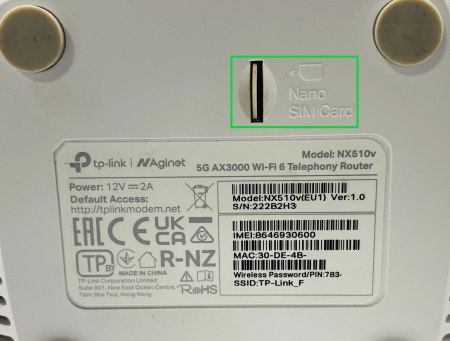
- Locate the SIM card slot positioned beneath the router and carefully insert the SIM card following the indicated orientation.
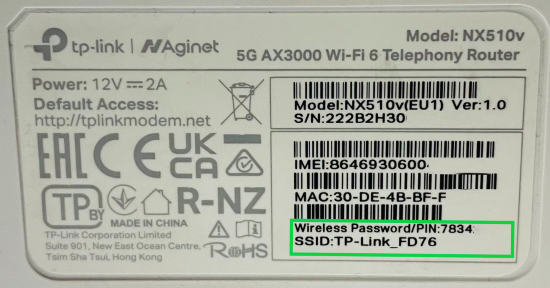
- Connect to the WiFi network of the TP-Link device.
If you would like to know What is WiFi and how to connect to a WiFi network, please read our Help Centre article for further assistance.
- The default SSID name and unique WiFi password can be found on the bottom of the device.
- Open your preferred internet browser (Google Chrome, Mozilla Firefox etc).
- Enter the router’s IP address 192.168.1.1 in the search bar and hit ‘Enter’.
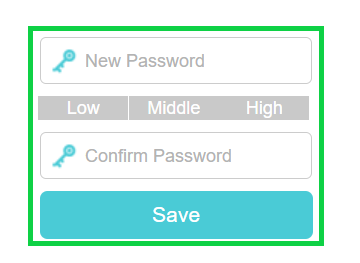
- Type in a new login password of your choice and confirm it.
- Click on ‘Save’.
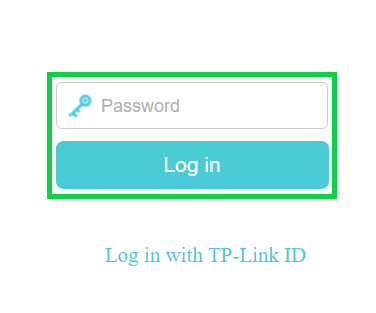
- Enter the newly created password and click ‘Log in’.
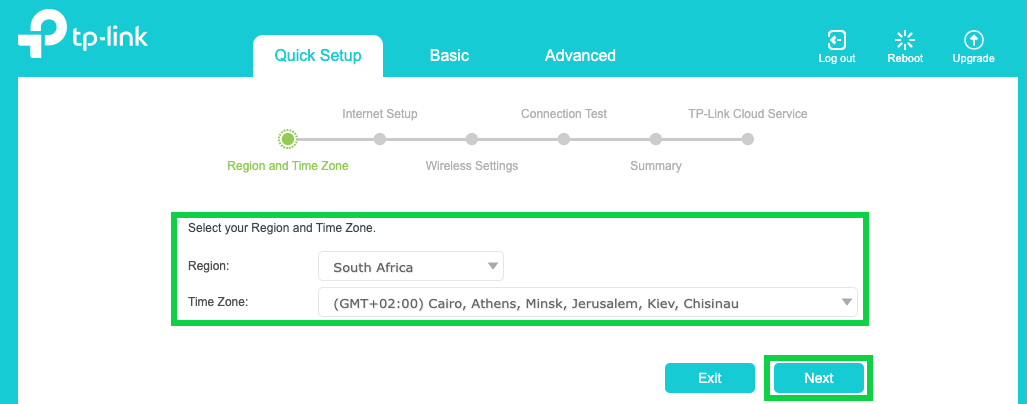
- From the ‘Region’ dropdown menu, select South Africa.
- The ‘Time Zone’ will be automatically set to (GMT+02:00).
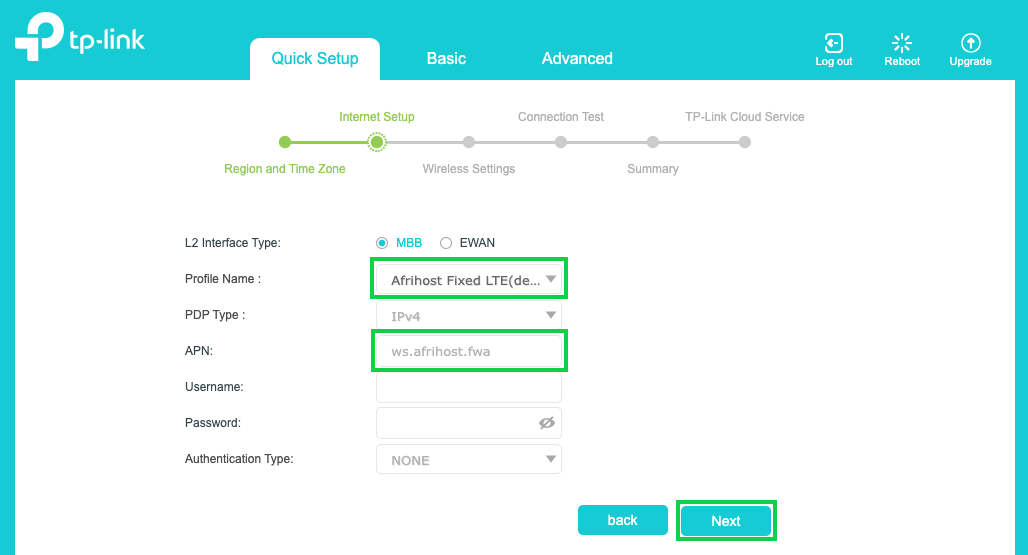
- Next to Profile Name choose ‘Afrihost Fixed LTE’.
- Enter ‘ws.afrihost.fwa’ in the APN field.
- Click ‘Next’ to proceed.
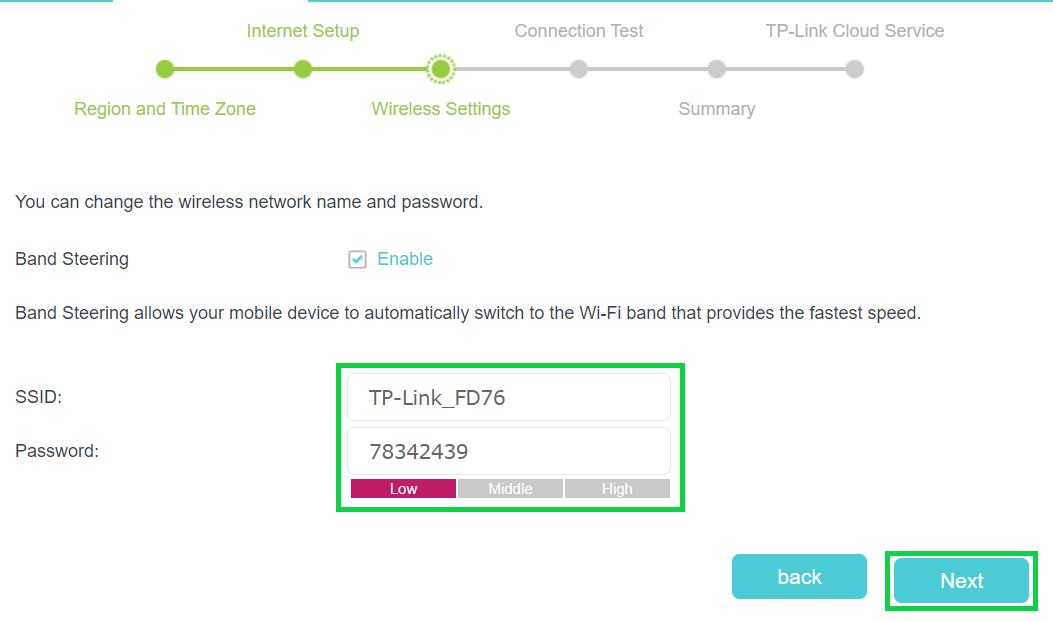
- Enter your preferred SSID and Password.
- Click ‘Next’ to continue.
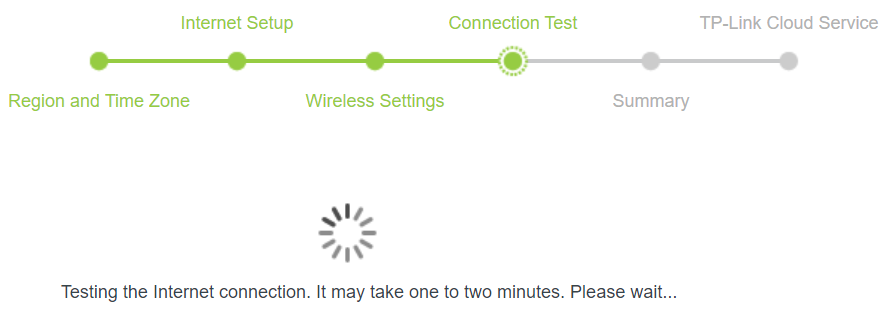
- Please wait while the wizard is testing your connection.
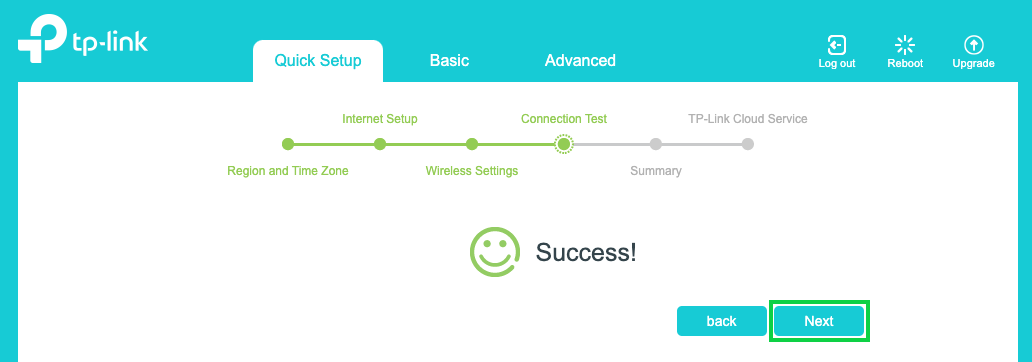
- Click 'Next' once the internet connection test is successful.
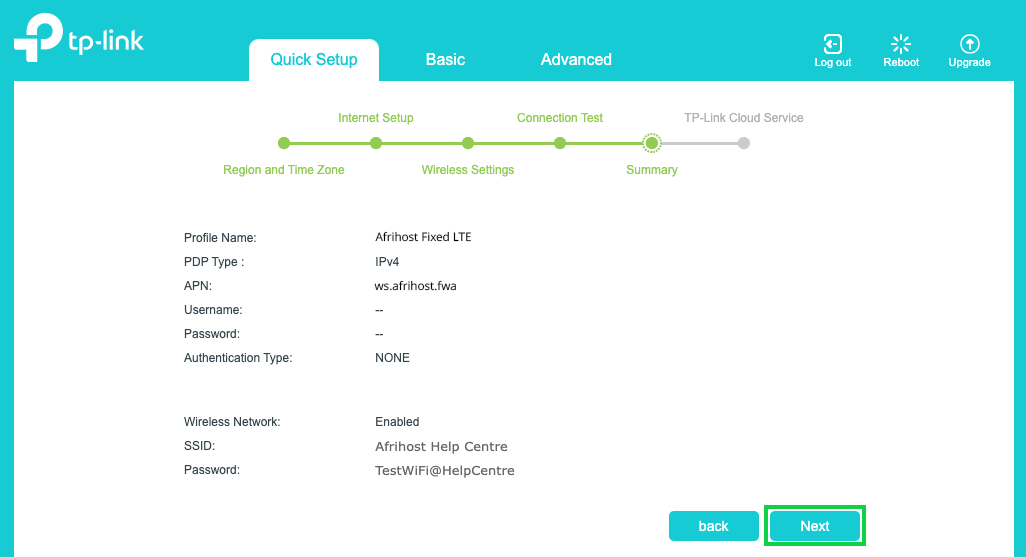
- The configuration summary will be displayed.
- Click ‘Next’.
- You have successfully configured your Tp-Link 5G device.
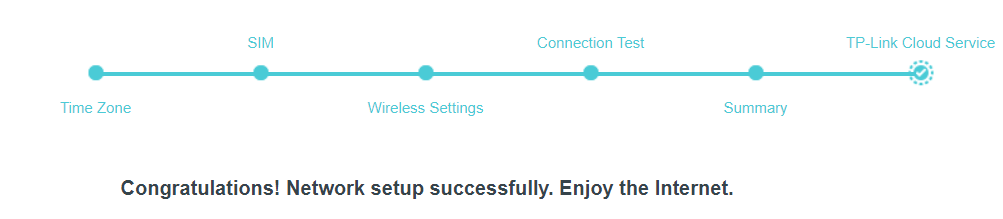
You may exit the interface and enjoy your internet connection.