

Wireless
How to lock your TP-Link MR600 router to 4G only
Changing your router connection mode to ‘4G Only’ provides a more reliable broadband connection, a faster internet speed, lower latency, and efficiency. You can easily change your connection mode to 4G only through the router.
Follow these steps to lock your TP-Link Archer MR600 router to 4G only:
- Connect to your LTE router via LAN cable or WiFi.
- Open your internet browser.
- Navigate to the device's IP address, 192.168.0.1, or tplinkmodem.net, and hit enter to search.
- Log into the router.
What is my routers password?
If you don’t remember the password of your router, please read our How to set up your TP-Link Archer MR600 LTE device article, for further assistance.
- Select ‘Advanced’ from the options at the top.
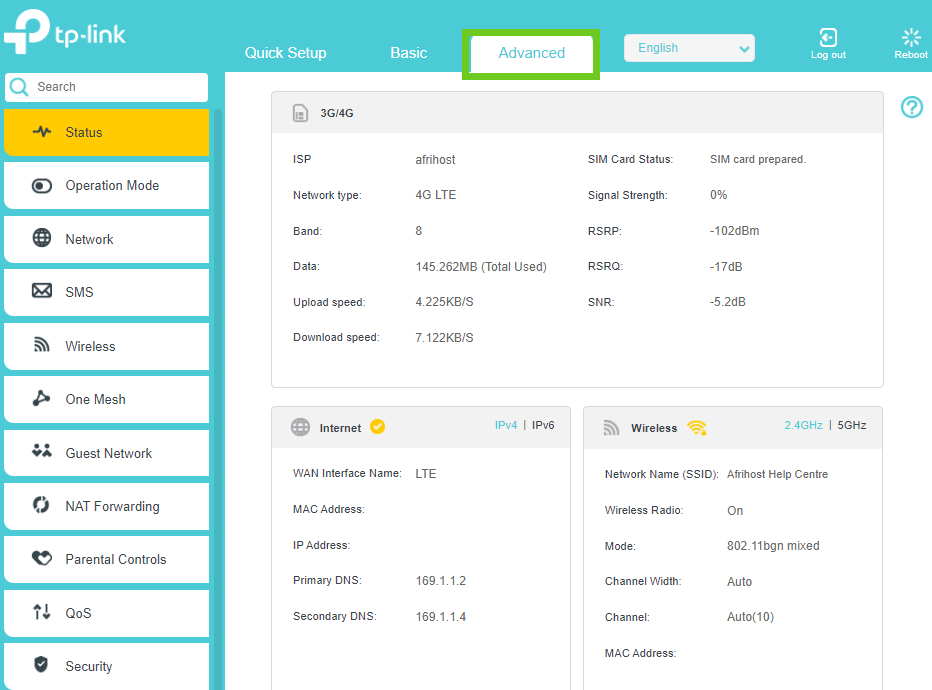
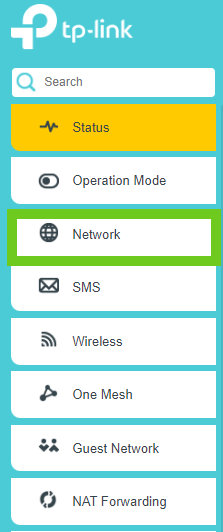
- Select ‘Network’ from the menu on the left-hand side.
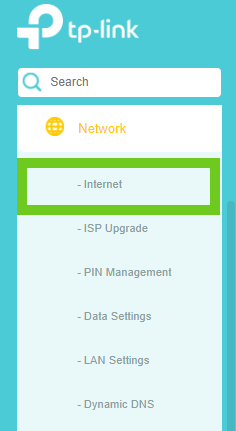
- Under Network, select ‘Internet’.
- Select ‘4G Only’ from the Network Mode drop-down menu.
- Click on the ‘Save’ button.
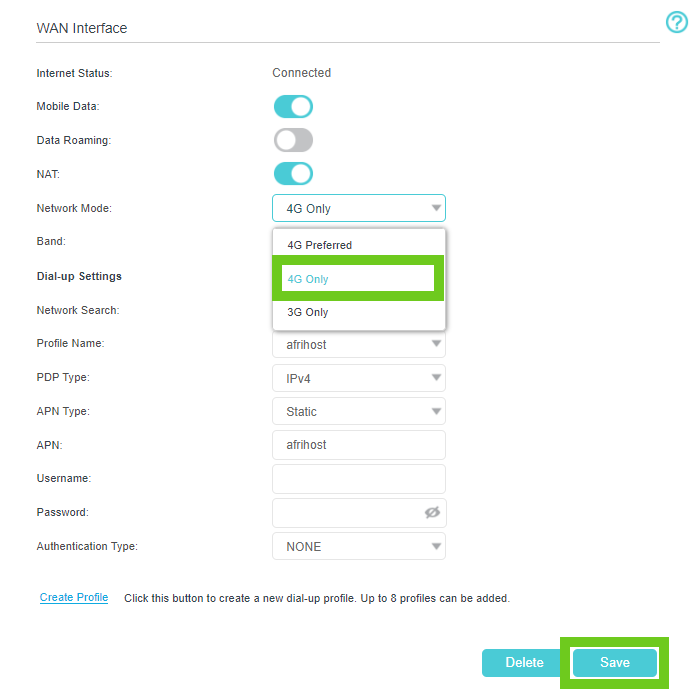
The changes will take effect immediately.