

How to set up your mail in Thunderbird
Thunderbird is a free, user-friendly email client with powerful features. Thunderbird is renowned for its convenience as an email client. It offers a highly intuitive and user-friendly interface, making it easy to set up and manage multiple email accounts from various providers in one place.
An email client is a geek term for a software application that gives you access to your emails, where you can manage and send emails. Email messages can be viewed and organized using its user interface. Email clients can be standalone applications, web-based applications, or mobile applications.
Follow the steps below to set up your Afrihost Pure Mail in Thunderbird:
You can download the App for free from the Thunderbird website
- Open your Thunderbird mail application
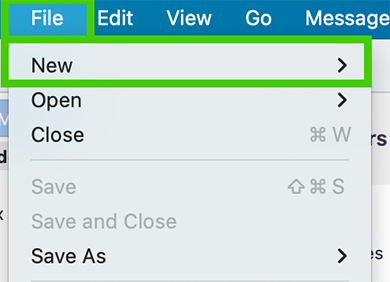
- Select ‘File’ from the top and then select ‘New’.
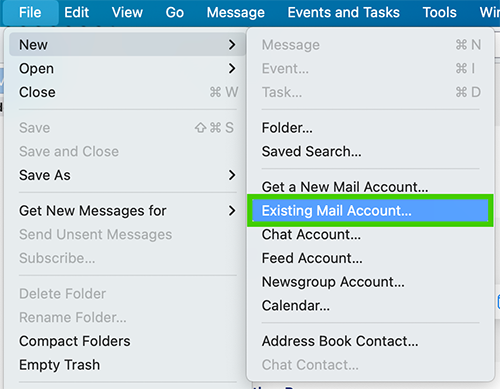
- Move across the menu and select ‘Existing Mail Account’.
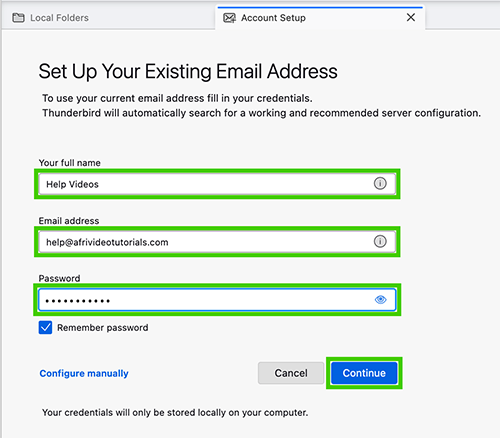
- Enter your login information as follows:
Full name: Enter the name you would like to appear to your recipients.
Email address: Enter your email address in full.
Password: Enter your email password.
- Select 'Continue' to proceed.
Please read How to update your email password in cPanel for further assistance.
Please read How to update your email password in CWP for further assistance.
- The server settings will be configured automatically. We recommend IMAP.
- Click ‘Done’ to complete the setup.
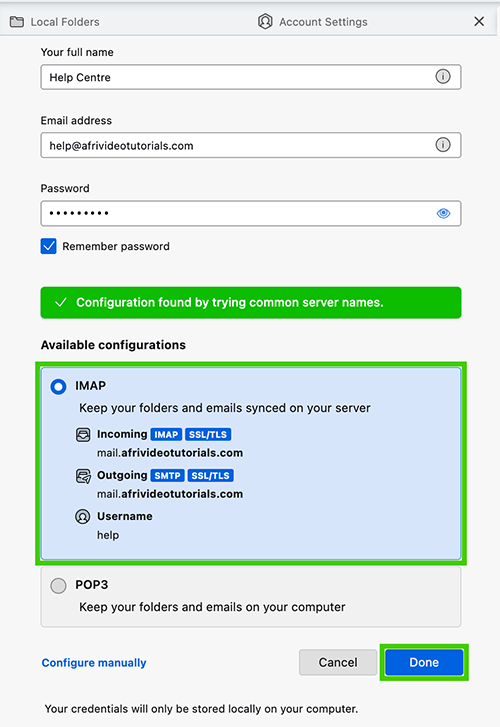
The difference between IMAP and POP lies in how they handle email synchronisation and storage. IMAP keeps emails on the server and synchronizes actions across devices. POP, on the other hand, downloads emails to a single device and doesn't synchronize actions, making it better for users who primarily access emails from one device and don't need to retain them on the server.
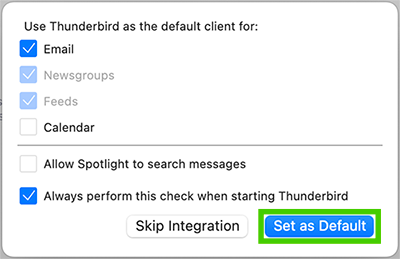
- Select 'Set as Default' to make Thunderbird your default email client.
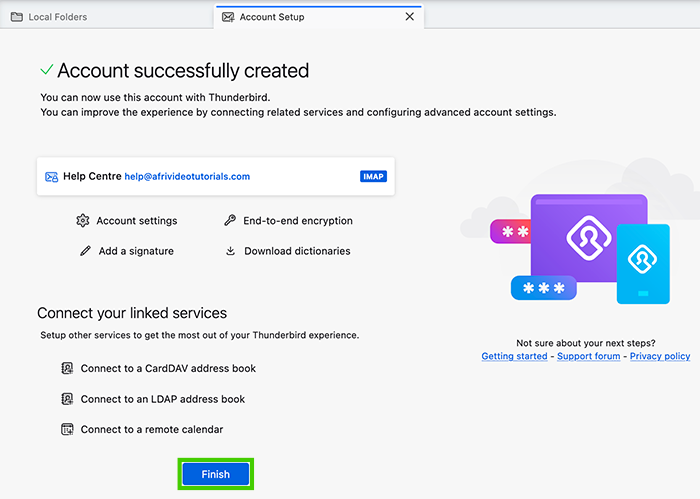
- Select ‘Finish’ to close the Account Setup screen.
- You will be redirected to your inbox.
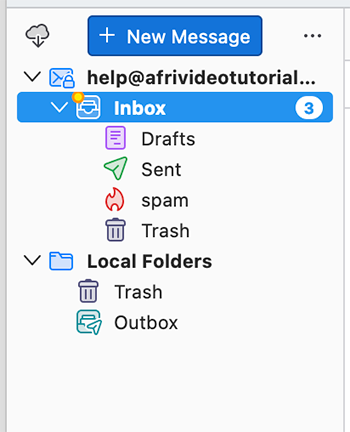
You have successfully set up your Pure email in Thunderbird.
How to set up your mail in Thunderbird
03:23