

How to change the SSID & WiFi password on your TP-Link NX510v 5G router
Your WiFi router comes with a default SSID name (network name) and password. Modifying your default SSID allows you to choose something personal and easy to remember. You can change the SSID and WiFi password of the router at any time.
SSID stands for Service Set Identifier. It is the name of your WiFi network.
Follow the steps below to change the SSID name and password:
- Connect to your LTE router via LAN cable or WiFi.
If you would like to know What is WiFi and how to connect to a WiFi network, please read our Help Centre article for further assistance.
- Open the internet browser of your choice (Google chrome, Safari, Firefox).
- Navigate to the router's IP address, 192.168.1.1 and hit enter to search.
- Log into the router.
If you are unsure of your router's password, you can reset and reconfigure your router. Please read our How to configure your Tp-Link NX510v 5G router Help Centre article for further assistance.
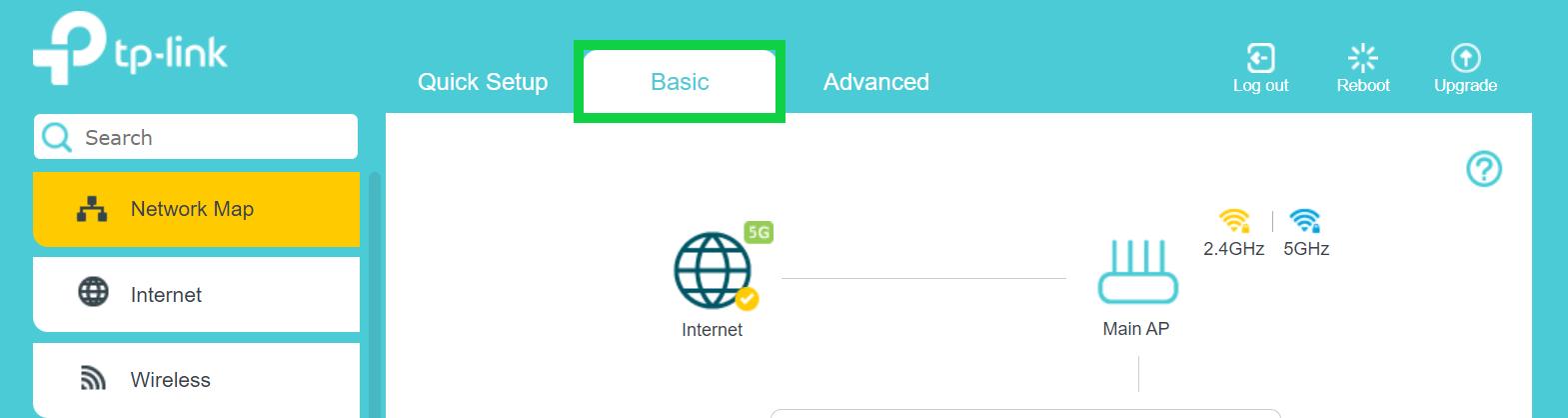
- On the home page, select ‘Basic’ from the menu at the top.
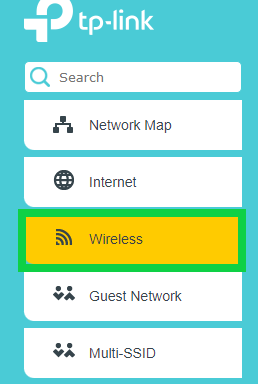
- Select ‘Wireless’ from the left-hand side menu.
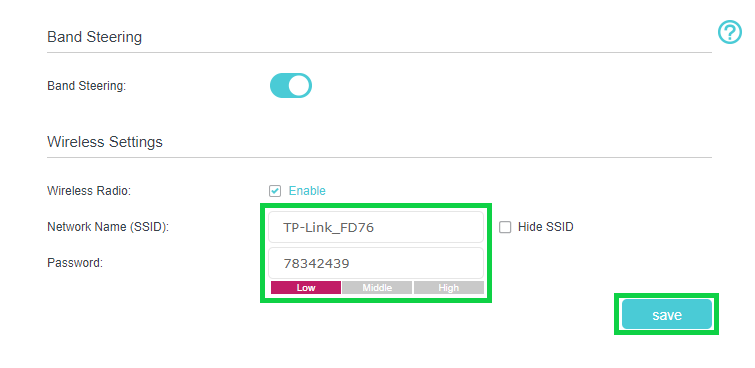
- Change the Network Name (SSID) and Password to one of your choice.
- Click the ‘Save’ button.
Band steering is a technique used in Wi-Fi networks to optimize performance by guiding devices to connect to the most appropriate frequency band, either 2.4 GHz or 5 GHz. This technology aims to distribute devices across different bands based on factors like signal strength, network congestion, and device capabilities. By steering devices to less crowded bands or bands with better signal quality, band steering helps improve overall network efficiency and user experience.
- Connect to the new network with your password.
Congratulations, you have successfully changed the SSID and WiFi password of your 5G router.