

How to manage your VumaReach PayFast payment details
PayFast is a payment gateway that allows for secure payments with a variety of payment solutions, these payment details may need to be updated and edited once in a while to ensure no payment issues.
Update your PayFast details
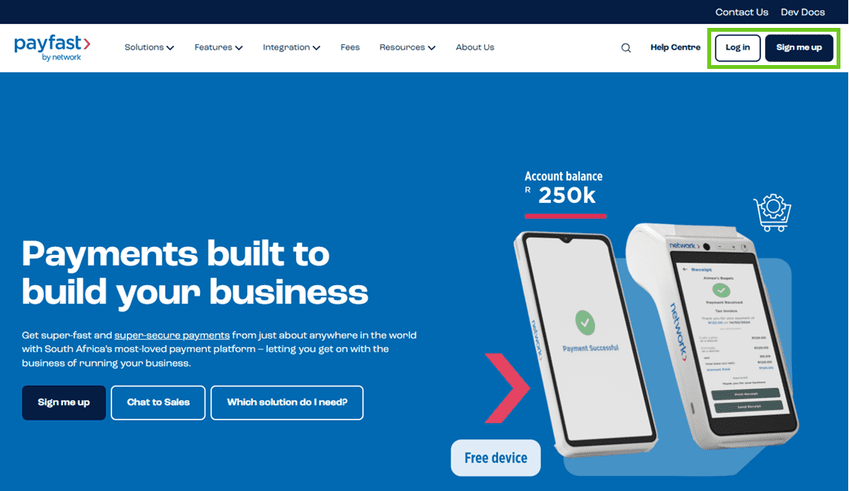
- Log in to your PayFast profile.
Select 'Log in' if you already have a profile or 'Sign me up' if you do not yet have a PayFast profile. Be sure to sign up using the email address linked to your Vuma Reach services and follow the sign up prompts.
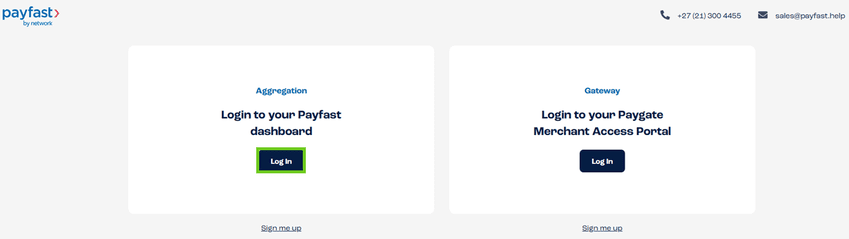
- Select ‘Log in’ under aggregation to access the Payfast dashboard.
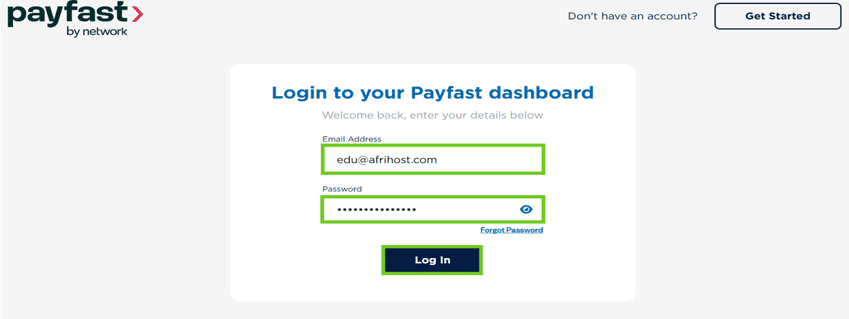
- Enter your PayFast username (email address) and password.
- Click on the 'Login' button.
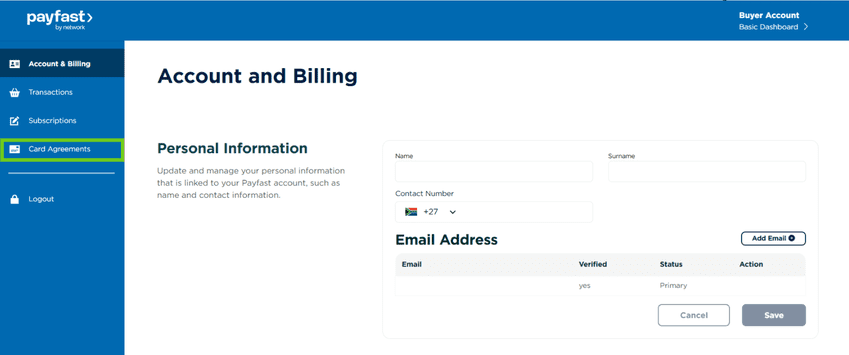
- Once logged in you will see your PayFast account and billing information.
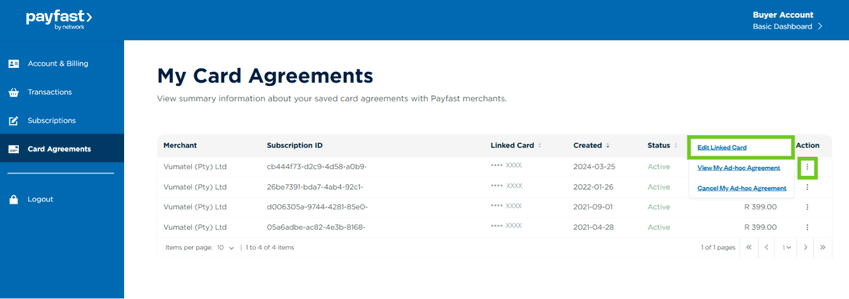
- On the left-hand side menu, select ‘Card Agreements’.
- Here you will see your saved card details. The merchant and the credit card and/or bank details that you have linked to your profile.
- Under the ‘Action’ column, in line with the VumaReach subscription, click the menu indicated by 3 dots and select ‘Edit Linked Card’.
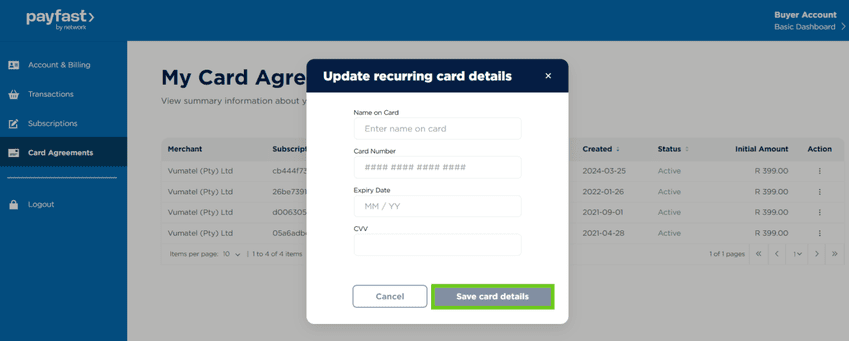
You will be prompted with a screen to update your card details.
- Enter your new card details. (name on card, card number, expiry date, and the CVV number).
- Click the ‘Save card details’ button when done.
Ensure that your bank card is registered for online purchases. Check with your bank if you are unsure.
You will be redirected to your bank's 3D Secure authentication page.
- Authenticate the card details using the One Time PIN (OTP) sent to you by your bank.
Your new payment information has been saved successfully.
If you would like to know How to make a Vuma Reach Prepaid Fibre payment via the EasyPay App please read our Help Centre article for more information.
Update your payment details via Walled Garden
Vuma Walled Garden is an account management portal for Vuma Reach clients. It allows Vuma Reach customers to manage their accounts, such as making payments, resubmitting payments, updating details, and troubleshooting connectivity issues related to their Vuma Reach connection.
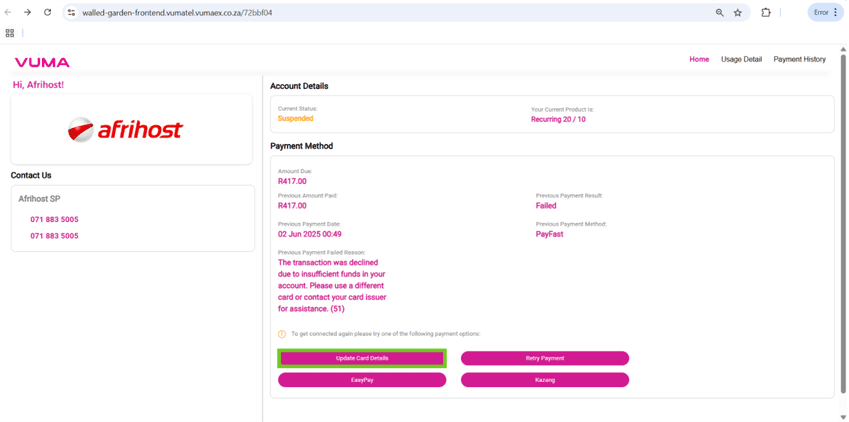
- Once the account is suspended, clients will be redirected to the Vuma Walled Garden page.
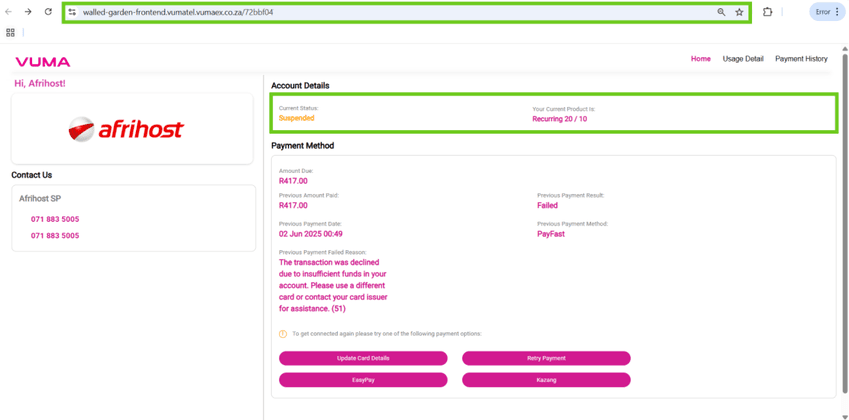
Remember to ensure your card or bank account has funds to avoid unnecessary connectivity interruptions.
- Under the ‘Payment Method’ section, the reason for the failed debit order will be displayed. Clients will have the option to update their banking details and retry the payment to initiate a re-debit on the account.
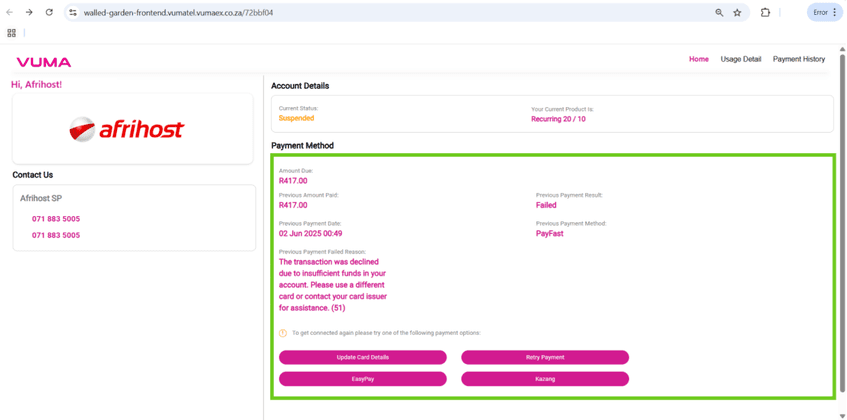
- To update your banking information, select the ‘Update Card Details’ option.
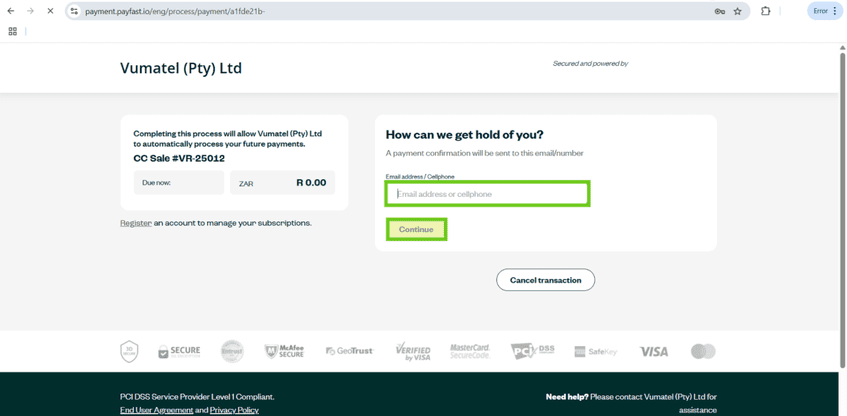
- The Payfast page will appear, enter your email address or contact number, and select ‘Continue’ to proceed.
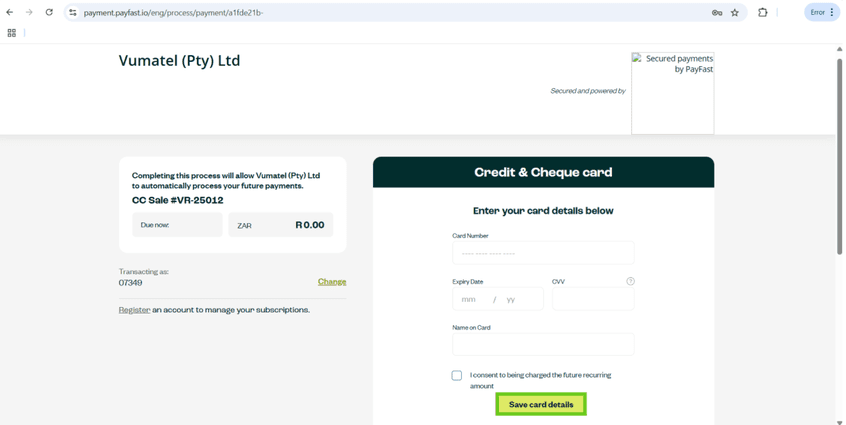
You will be prompted with a screen to update your card details.
- Enter your new card details. (name on card, card number, expiry date, and the CVV number).
- Click the ‘Save Card Details’ button when done.
You will be redirected to your bank's 3D Secure authentication page.
- Authenticate the card details using the One Time PIN (OTP) sent to you by your bank.
Your new payment information has been saved successfully.
Prices displayed on images may differ from current prices listed on our website. Please check our website for the most up-to-date pricing information.
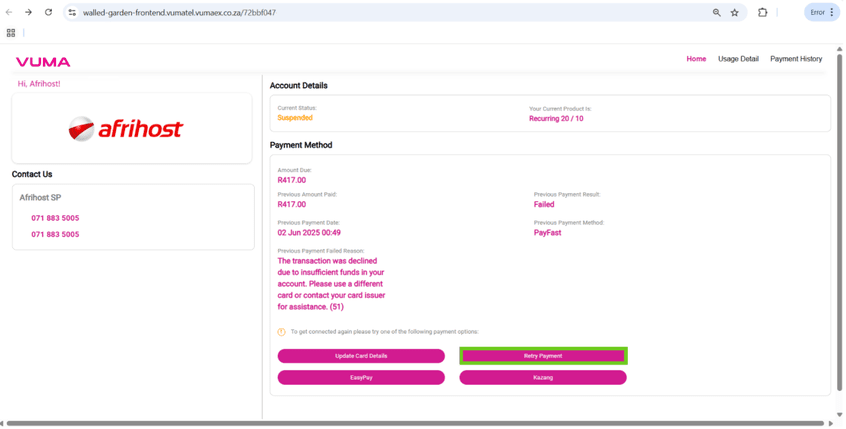
- If the linked payment method has sufficient funds and you want Vuma to try again, select ‘Retry Payment’ to initiate a re-debit on the account.
If you would like to know How to view invoices, please read our Help Centre article.
If payment failed on a Vuma Reach account please contact support team to assist with re-debit order.
How to manage your Vuma Reach PayFast payment details
1:34